<?xml version="1.0" encoding="UTF-8"?>
<rss version="2.0"
	xmlns:content="http://purl.org/rss/1.0/modules/content/"
	xmlns:wfw="http://wellformedweb.org/CommentAPI/"
	xmlns:dc="http://purl.org/dc/elements/1.1/"
	xmlns:atom="http://www.w3.org/2005/Atom"
	xmlns:sy="http://purl.org/rss/1.0/modules/syndication/"
	xmlns:slash="http://purl.org/rss/1.0/modules/slash/"
	>

<channel>
	<title>SWB Labs</title>
	<atom:link href="http://www.swblabs.com/?feed=rss2" rel="self" type="application/rss+xml" />
	<link>http://www.swblabs.com</link>
	<description>Scott&#039;s After Hours Projects</description>
	<lastBuildDate>Wed, 20 Feb 2013 04:41:51 +0000</lastBuildDate>
	<language>en-US</language>
	<sy:updatePeriod>hourly</sy:updatePeriod>
	<sy:updateFrequency>1</sy:updateFrequency>
	<generator>http://wordpress.org/?v=3.5.1</generator>
		<item>
		<title>A Raspberry Pi-based State Poster Project</title>
		<link>http://www.swblabs.com/?p=871&#038;utm_source=rss&#038;utm_medium=rss&#038;utm_campaign=a-raspberry-pi-based-state-poster-project</link>
		<comments>http://www.swblabs.com/?p=871#comments</comments>
		<pubDate>Wed, 20 Feb 2013 04:41:51 +0000</pubDate>
		<dc:creator>Scott</dc:creator>
				<category><![CDATA[Projects]]></category>
		<category><![CDATA[Raspberry Pi]]></category>
		<category><![CDATA[Software]]></category>

		<guid isPermaLink="false">http://www.swblabs.com/?p=871</guid>
		<description><![CDATA[At our daughter&#8217;s school, all the 2nd graders put together a &#8220;state board&#8221; project.  They are randomly assigned a state (in our daughter&#8217;s case, Vermont) and the students work to put together a poster on a tri-fold piece of cardboard.  From what I&#8217;ve heard, the projects often have 3D aspects like animals and products attached and several over the years have had buttons to play things like the state song.  We brainstormed possible elements we [...]]]></description>
				<content:encoded><![CDATA[<p><a href="http://www.swblabs.com/blog/wp-content/uploads/2013/02/vermont-cropped640.png"><img class="aligncenter size-full wp-image-875" title="vermont-cropped640" alt="" src="http://www.swblabs.com/blog/wp-content/uploads/2013/02/vermont-cropped640.png" width="640" height="499" /></a></p>
<p><center><iframe src="http://www.youtube.com/embed/ndUF-g-kVys?rel=0" height="315" width="560" allowfullscreen="" frameborder="0"></iframe></center>At our daughter&#8217;s school, all the 2nd graders put together a &#8220;state board&#8221; project.  They are randomly assigned a state (in our daughter&#8217;s case, Vermont) and the students work to put together a poster on a tri-fold piece of cardboard.  From what I&#8217;ve heard, the projects often have 3D aspects like animals and products attached and several over the years have had buttons to play things like the state song.  We brainstormed possible elements we might include on the board and thought about sound, light, and even considered EL-wire animated rivers.  I wanted to make sure that if we chose a more elaborate design that our daughter would actually carry out most of the work and that we document that &#8212; so I used a flip video recorder to film most of the process.  In terms of electronics, our daughter jumped in fairly quickly having learned to solder at the recent Makerfaire in New York.  She&#8217;s built a couple of kits since then.  There was a fair amount of soldering required on the Perma-Proto.  The video below shows our daughter working on the Perma-Proto and button boards.</p>
<p><center><iframe src="http://www.youtube.com/embed/VTpz-6bwdhw?rel=0" height="315" width="560" allowfullscreen="" frameborder="0"></iframe></center><br />
In order to have the desired sound and light elements we needed to choose an appropriate controller.  I debated whether it would be best to recommend an Arduino-based design or to use a Raspberry Pi.  An Arduino approach might use an Arduino and <a href="https://www.adafruit.com/products/94">Wave Shield</a> combination.  It would have the advantage of fast start up and shutdown and would have clear uninterrupted audio.  A Raspberry Pi would potentially be less expensive as it could play the audio off its own filesystem, has networking built in (Model B), and can use Adafruit&#8217;s WebIDE which would simplify our daughter&#8217;s Python-based programming tasks (the Arduino wouldn&#8217;t have been Python).  The Pi could multi-task which would make some things easier but would make smooth sound playback more challenging.  As the project would be in place at the school for the rest of the year, power management was important also &#8212; so a graceful auto-shutdown would be essential.  I&#8217;d done many past projects with the Arduino/<a href="https://www.adafruit.com/products/94">Wave Shield</a> combination so I really wanted to see how well it could be done with the Raspberry Pi.  The WebIDE helped convince me it would be easier for our daughter to work with (and she&#8217;d just started working through <a href="http://www.amazon.com/Python-Kids-Playful-Introduction-Programming/dp/1593274076/ref=sr_1_1?ie=UTF8&amp;qid=1360973445&amp;sr=8-1&amp;keywords=python+for+kids">Python for Kids</a>).</p>
<p>We started with a rough idea of how we thought things would come together.  First, we would need to have the outline of the state.  One of the goals was to avoid having a lot of wires and connections on the back of the tri-fold.  To accomplish that, the state boundary outline would have to be a separate piece.  That also satisfied creating a 3D look for the state.  We could have used foam board but I thought quarter inch plywood would hold up better and allow for more precise cuts.  The plan was to use actual state boundary data to generate g-code for our CNC.  We would also plan the precise location of the LEDs and drill holes at those locations on the wood.  The legend would also be wood and would have holes for LEDs and buttons.  The hope was that a single strand of RGB LEDs could be routed around the back side of the state and legend boards and hit all the holes.  We planned to use 50 LEDs in total, 15 on the legend and 35 on the map.  As it turned out, we should have adjusted the holes somewhat but we did pretty well wasting only 2 on the strand which didn&#8217;t reach a hole and having to add 2 more to compensate which were plugged into the end of the strand (we wanted to keep the two 25 LED strands we used intact).</p>
<p>Other parts of our plan included use of a wireless remote in addition to the 8 buttons we planned on using on the board.  Since the remote receiver operated at 5 volts, we needed to introduce a level-converter for use with the 3.3 volt Raspberry Pi.  We then needed a switch module which could trigger a full power up from the press of a momentary switch while using very little current to monitor the switch.  We also needed to amplify audio from the Pi to drive a small set of speakers.  As the Pi audio is not always smooth and has occasional clicks and pops (even with some filtering) &#8212; this can cause problems if the amplifier is driven from the same supply as the Pi as it can draw enough current to crash the Pi.  So the amplifier would have to have its own power which could be connected when the main power came up.  So all together the hardware needed consisted of:</p>
<ul>
<li><a href="http://www.newark.com/raspberry-pi/raspbrry-modb-512m/model-b-assembled-board-only/dp/43W5302">Raspberry Pi Model B (Rev 1)</a></li>
<li><a href="https://www.adafruit.com/products/1135">Adafruit Full Sized Perma-Proto Raspberry Pi Breadboard PCB</a></li>
<li><a href="https://www.adafruit.com/products/862">Raspberry Pi GPIO Ribbon Cable</a></li>
<li>2 Strands of <a href="https://www.adafruit.com/products/738">25 12mm Diffused Flat Digital RGB LED Pixels</a> (and 2 LEDs clipped from <a href="https://www.sparkfun.com/products/11020">another WS2801-based 20 RGB LED Chain from Sparkfun</a> as I needed 52 total)</li>
<li><a href="https://www.adafruit.com/products/578">4-pin JST SM Plug Set</a> (to connect/disconnect from the LED strand and in our case to fasten a couple extra LEDs to the end of the chain)</li>
<li><a href="https://www.adafruit.com/products/1009">Round tactile buttons</a></li>
<li><a href="https://www.adafruit.com/products/987">Stereo 3.7W Class D Audio Amplifier</a></li>
<li><a href="https://www.adafruit.com/products/757">4-channel Bi-directional Logic Level Converter</a> (for optional RF)</li>
<li><a href="https://www.adafruit.com/products/1096">Simple RF M4 Receiver &#8211; 315 MHz Momentary Type</a> (for optional RF)</li>
<li><a href="https://www.adafruit.com/products/1095">Keyfob RF Remote Control &#8212; 315 MHz</a> (for optional RF)</li>
<li><a href="http://www.radioshack.com/product/index.jsp?productId=2062245">4 D-Cell Battery Holder</a> (joined with the 1 D-Cell holder below)</li>
<li><a href="http://www.radioshack.com/product/index.jsp?productId=2062249">1 D-Cell Battery Holder</a></li>
<li><a href="http://www.radioshack.com/product/index.jsp?productId=2062244">4 AA-Cell Battery Holder</a> (converted to a 3-cell holder by wiring across one of the cell positions)</li>
<li>2 <a href="http://www.radioshack.com/product/index.jsp?productId=2104052">Dual Mini Boards</a> (to cover 4 button areas)</li>
<li><a href="http://www.radioshack.com/product/index.jsp?productId=2103788">Right-Angle Audio Adapter</a> (to fit into the Pi&#8217;s audio out)</li>
<li><a href="http://www.radioshack.com/product/index.jsp?productId=2104061">Stereo Mini Plug</a></li>
<li><a href="http://www.radioshack.com/product/index.jsp?productId=2102849">5mm Wide-Angle Red LED</a></li>
<li><a href="http://www.radioshack.com/product/index.jsp?productId=2103614">Size M Coaxial DC Power Plug</a> (for fun I attached a <a href="http://www.amazon.com/gp/product/B001HXZT14/ref=oh_details_o01_s00_i00?ie=UTF8&amp;psc=1">Remove Before Flight</a> tag to the drilled out plug to make it clear to pull the plug out when you want to operate it)</li>
<li><a href="http://www.radioshack.com/product/index.jsp?productId=2102491">Panel-Mount Size M Coaxial Power Jack</a></li>
<li>2 <a href="http://www.amazon.com/gp/product/B005FMY2BG/ref=oh_details_o02_s00_i01?ie=UTF8&amp;psc=1">2&#8243; Paper Cone Midrange Tweeters (4 Ohm)</a></li>
<li><a href="http://www.pololu.com/catalog/product/2110">Pololu Step-Down Voltage Regulator</a> (for 5 volts, 3.5 Amps)</li>
<li><a href="http://www.pololu.com/catalog/product/750">Pololu Pushbutton Power Switch SV</a></li>
<li><a href="http://www.radioshack.com/product/index.jsp?productId=2062480">5VDC SPDT Micro Relay</a></li>
<li><a href="http://www.radioshack.com/product/index.jsp?productId=2102861">9 2-Position PCB Terminals</a></li>
<li><a href="https://www.adafruit.com/product/1116">Board Edge Mounting Kit</a> (for the Pi Model B Rev 1 since it doesn&#8217;t have mounting holes)</li>
<li>#8 5/8&#8243; Round Head Wood Screws (with the fender washers below for fastening through cardboard into wood)</li>
<li>1/8&#8243; x 1&#8243; Fender Washers</li>
<li>#4 Machine Screws, Washers, Nuts (for attaching Perma-Proto and battery holders)</li>
<li>#8 x 1/2&#8243; Sheet Metal Screws (work in lieu of the screws in the board edge mounting kit above to get through 1/4&#8243; plywood &#8212; maybe with a washer or two to diminish their length)</li>
</ul>
<p>We used modular 6-conductor modular phones jacks and plugs for connecting with the button panels.  The legend panel used all 6 conductors for the 5 buttons and we were able to find 6-conductor modular phone cable at a local Radio Shack (this is harder to come by than 4-conductor).  For the power and other buttons we just used two more 4-conductor modular cables.  The cheapest jacks were in 10-packs at Home Depot but the modular cable we had was stranded so it wasn&#8217;t quite so easy as just using a punch down tool &#8212; we had to work to make sure it made contact &#8212; sometimes tinning some of the wire where it came through the channel.  It might be easier although slightly more expensive just to use RJ45s and CAT5 for switch wiring.</p>
<p>The finished control box, mounted on the bottom back of the center section of the tri-fold, is shown below.</p>
<p style="text-align: center;"><a href="http://www.swblabs.com/blog/wp-content/uploads/2013/02/vermont-box.png"><img class="aligncenter size-full wp-image-874" title="vermont-box640" alt="" src="http://www.swblabs.com/blog/wp-content/uploads/2013/02/vermont-box640.png" width="640" height="322" /></a></p>
<p>&nbsp;</p>
<p>Now that we&#8217;ve covered an overview of the build and given the materials involved, let&#8217;s discuss some of the major steps in detail.</p>
<h3>Planning LED Placement</h3>
<p>An important part of the project was planning the placement of all the LEDs on the map as well as what colors they should be to indicate different products on the legend.  Since the LEDs can change to any color, single LEDs could be used to indicate different products at different times with different colors.  So in planning, one could conserve LEDs by using one LED to represent each region in the state.  Here&#8217;s a video of our daughter&#8217;s planning process including color selection and RGB value determination:</p>
<p><center><iframe src="http://www.youtube.com/embed/Go_iVeiHbQ4?rel=0" height="315" width="560" allowfullscreen="" frameborder="0"></iframe></center></p>
<h3>Cutting Out Your State with a CNC</h3>
<p>In our case, we had a small CNC machine we could use to cut the state outline (laser cutting the wood would have been easier).  Since the desired size of the state was larger than the CNC, the plan was to cut it in 4 pieces and join them together.  Ultimately, it all came down to how to generate the g-code for the CNC.  This was accomplished with a mixture of some Python and Java code and could be adapted for other state boundaries.  One million scale U.S. state boundaries can be downloaded <a href="http://nationalatlas.gov/atlasftp.html#statep0">here</a>.  I&#8217;ve also made a local copy of the <a href="http://www.swblabs.com/downloads/vermont/statep010_nt00798.tar.gz">statep010_nt00798.tar.gz</a> 2012 boundaries file <a href="http://www.swblabs.com/downloads/vermont/statep010_nt00798.tar.gz">here</a>.  The archive file has a shape format file inside with boundary data for all the states.  A simple Python program can be used to copy out the latitude, longitude values for the boundary of a given state as follows:</p>
<pre>import shapefile
import sys

r=shapefile.Reader("statep010.shp")
sr=r.shapeRecords()
for s in sr:
    if s.record[3]=='Vermont':
        shape=s
f=open("vermont.txt",'w')
for pt in shape.shape.points:
    f.write(str(pt[0]))
    f.write(",")
    f.write(str(pt[1]))
    f.write("\n")
f.close()</pre>
<p>The Python program above will need<a href="http://code.google.com/p/pyshp/"> the Python shapefile extension</a> to be installed.  It finds the record associated with the desired state, in this case Vermont, and writes out the latitude, longitude values for the state outlines to an ASCII datafile called <a href="http://www.swblabs.com/downloads/vermont/vermont.txt">vermont.txt</a> that will be used by our next program.  The next set of programs (written in Java and available in <a href="http://www.swblabs.com/downloads/vermont/vermont.jar">vermont.jar</a>) generate g-code for various parts of the project.  These all give graphical previews of the parts they will cut.  The first program (called Plot.java) plots the state boundary from the vermont.txt file but also uses resource files that have the locations of the lights (as interpolated from a Vermont product map) and some city locations (from the lat/lon) to help in understanding where to place city labels.  The holes are roughly to scale which gave us an idea of whether they were too close to the edge or to boundaries of the state quarters.  Some polygon intersections were used in Java to produce the 4 smaller polygons for the parts of the state we needed to cut separately.  We tweaked the cut boundaries until they didn&#8217;t cross any of the light hole positions but yet kept the state quarters small enough to cut on the CNC.  Ultimately the program produces 4 g-code files, one for each of the state quarters (<a href="http://www.swblabs.com/downloads/vermont/vermont1.nc">vermont1.nc</a>, <a href="http://www.swblabs.com/downloads/vermont/vermont2.nc">vermont2.nc</a>, <a href="http://www.swblabs.com/downloads/vermont/vermont3.nc">vermont3.nc</a>, and <a href="http://www.swblabs.com/downloads/vermont/vermont4.nc">vermont4.nc</a>).</p>
<p><center><a href="http://www.swblabs.com/blog/wp-content/uploads/2013/02/plot.png"><img class="aligncenter  wp-image-904" alt="plot" src="http://www.swblabs.com/blog/wp-content/uploads/2013/02/plot.png" width="391" height="456" /></a></center>The video below shows some examples of pilot holes being cut for the LEDs and the boundaries being cut:</p>
<p><center><iframe src="http://www.youtube.com/embed/gAo_Z373PAY?rel=0" height="315" width="560" allowfullscreen="" frameborder="0"></iframe></center></p>
<h3>Cutting Title Letters</h3>
<p>We also used the CNC to cut the individual letters for Vermont.  I tried out <a href="http://www.ncplot.com">NCPlot</a> which worked pretty well for generating g-code for the letters.  I had to re-order the cuts though on letters like the &#8220;R&#8221; and &#8220;O&#8221; since I discovered a little too late that it didn&#8217;t cut the holes before it cut the letter boundary itself. Here&#8217;s a video of the title letters being cut and sanded:</p>
<p><center><iframe src="http://www.youtube.com/embed/MkM7e81N6BQ?rel=0" height="315" width="560" allowfullscreen="" frameborder="0"></iframe></center></p>
<h3>Planning/Cutting the Legend</h3>
<p>We sized the legend panel so that it could accommodate the 15 product entries with LED holes spaced sufficiently.  It also had to fit in the center cardboard panel to the bottom right of the state.  The primary control buttons were also located on the legend panel at the bottom.  So mostly the CNC was used to drill the legend pilot holes for all the LEDs as well as for 5 buttons and to cut out the rectangular border for the panel.</p>
<p style="text-align: center;"><a href="http://www.swblabs.com/blog/wp-content/uploads/2013/02/legend.jpg"><img class="aligncenter  wp-image-931" alt="legend640" src="http://www.swblabs.com/blog/wp-content/uploads/2013/02/legend640.jpg" width="230" height="500" /></a></p>
<p>And here&#8217;s the legend panel being cut:</p>
<p><center><iframe src="http://www.youtube.com/embed/wJ6g0TbC5kE?rel=0" height="315" width="560" allowfullscreen="" frameborder="0"></iframe></center></p>
<h3>Gluing/Sanding/Painting the Wood Parts</h3>
<p>The four quarter pieces of the state were glued together with wood glue.  These joins were along straight edges.  Thin strips of wood were used along the seams in the back to strengthen the seams (these had to be cut away from a couple of the holes with a dremel).  The state, letters, and legend pieces were all sanded and painted.  The rivers and water areas on the state were painted with blue glitter paint. Here&#8217;s a video of the painting process:</p>
<p><center><iframe src="http://www.youtube.com/embed/VpKdIe-BFx8?rel=0" height="315" width="560" allowfullscreen="" frameborder="0"></iframe></center><br />
Also, before the water features were painted, as shown in the video above, they were traced using a projected overlay as shown below:</p>
<p><center><iframe src="http://www.youtube.com/embed/bJOI8ei5hmM?rel=0" height="315" width="560" allowfullscreen="" frameborder="0"></iframe></center></p>
<h3>Attaching the LEDs</h3>
<p>All the LED holes were drilled so the LEDs protrude through the holes and the flat part containing the ICs are flush against the wood on the back side.  Hot-melt glue holds each LED in place.  The LED chain begins at the bottom of the legend panel where the LEDs fill all the holes from bottom to top and then they jump over to the map where they traverse the 35 holes there.  In a couple of cases an LED didn&#8217;t reach a hole and had to be skipped (since we didn&#8217;t want to cut the two 25 LED strands).  I debated about actually writing some code to search for the best way to cover the holes with a minimum of skipped LEDs (a familiar algorithms problem) &#8212; but missing 2 wasn&#8217;t so bad.  As a result, we need to put together a 2 LED extension (using the other JST plug from the set) and add that to the chain.  The photo below shows a top view of the board where you can see the cardboard layer, mounting blocks, and map layer.</p>
<p style="text-align: center;"><a href="http://www.swblabs.com/blog/wp-content/uploads/2013/02/vermont-lights.png"><img class="aligncenter size-full wp-image-877" alt="vermont-lights640" src="http://www.swblabs.com/blog/wp-content/uploads/2013/02/vermont-lights640.png" width="640" height="147" /></a></p>
<h3>Buttons</h3>
<p>There are 4 areas where buttons are needed: at the bottom of the legend panel, an &#8220;on&#8221; button at the bottom left of the state (which includes a power LED), and buttons for the song and the bird located to the left of the upper portion of the state.  All of these are backed by small proto boards whose buttons and leds extend through either the wood or cardboard and which are hot-melt glued on the back.  The 5 legend buttons are connected with a single 6 conductor modular phone cord.  The power button/led is connected with a 4 conductor modular phone cord and then bird and song buttons jointly utilize another 4 conductor modular cord.</p>
<h3>Mounting the Boards to the Cardboard Tri-Fold</h3>
<p>Both the state and legend boards have wood blocks wood-glued to them in the back to allow space for the LED strand (and buttons) behind them but in front of the cardboard.  Fender washers and wood screws come through the backside of the cardboard into those wood blocks, holding the boards securely on the cardboard.</p>
<h3>Design of the Control Box Enclosure</h3>
<p>The electronics control box is attached to the bottom of the central cardboard panel on the back.  The box is 24&#8243; long (to match the central tri-fold panel).  Electronics, batteries, and speakers are laid out linearly along the full 24&#8243;. To make access easier, an acrylic sliding top is used which can open fully to give access to electronics and batteries.  The components themselves are also mounted to a slideable 1/4&#8243; plywood base which is mounted slightly above the bottom of the box.  The bottom of the box can therefore be flat without the various mounting screws for the board and batteries being exposed.  It&#8217;s also convenient to be able to slide the electronics out.  One end piece on the box has both a network jack and an external power jack.  Originally, we used external power but once the battery circuit was fully in place that became much more convenient and we never used external power again during development.  The power jack is wired so that battery power cuts off when external power is applied (but a jumper needs to be removed if you want to provide regulated 5 volt power through the external jack &#8212; otherwise a slightly higher voltage needs to be supplied as the internal 5 volt regulator needs a slightly higher voltage &#8212; as the 5 &#8220;D&#8221; cells are providing when it&#8217;s on battery).  A dummy plug inserted in the external power jack serves as an effective &#8220;safety&#8221; so the system isn&#8217;t accidentally triggered during transport.  In a nod to the aviation community, it seemed reasonable to attach a &#8220;Remove Before Flight&#8221; banner to the dummy plug to clearly show its purpose (and I recently witnessed parents at our daughter&#8217;s school removing the plug without needed explanation to give it a try).</p>
<p style="text-align: center;"><a href="http://www.swblabs.com/blog/wp-content/uploads/2013/02/end-rbf.jpg"><img class="aligncenter  wp-image-929" alt="end-rbf640" src="http://www.swblabs.com/blog/wp-content/uploads/2013/02/end-rbf640.jpg" width="230" height="413" /></a></p>
<p style="text-align: center;">The photo below shows the end of the enclosure with the network/power connection end removed.  This shows the bottom that the components are connected to.  You can see the Pi board with the circuit board clips which hold it to the base.  Sheet metal screws of the appropriate depth were used with the clips to allow a mount on the 1/4&#8243; plywood.  The speaker normally occupies the space at the center of the photo.  A very short RJ45 male-to-male cable was created to bridge the gap between the Pi and the female-to-female RJ45 which was used as the network connector on the end panel.<br />
<a href="http://www.swblabs.com/blog/wp-content/uploads/2013/02/slide-bottom.jpg"><img class="aligncenter size-full wp-image-927" alt="slide-bottom640" src="http://www.swblabs.com/blog/wp-content/uploads/2013/02/slide-bottom640.jpg" width="640" height="520" /></a></p>
<p>The control box is fastened to the cardboard using the same fender washer and wood screws as the state and legend except they come through from the front side of the board and are covered by stickers and maple leaves.  There are three screws, one on the left, one in the middle, and one on the right.  The box has a wiring hole that comes out behind the bottom side of the legend.  The 6-conductor modular cord and 4-pin JST go through that hole. Here&#8217;s a clip of our daughter sanding the control box pieces prior to assembly:</p>
<p><center><iframe src="http://www.youtube.com/embed/ptkRfqb4CD4?rel=0" height="315" width="560" allowfullscreen="" frameborder="0"></iframe></center><br />
One fun detail was to create some sound/ventilation holes in the acrylic slide cover to the enclosure.  The AcrylicTop class included in the <a href="http://www.swblabs.com/downloads/vermont/vermont.jar">vermont.jar</a> generates the g-code for the vent holes.  Since these were vent hole patterns, the code doesn&#8217;t actually need to access the strokes for the font characters.  The code renders the characters to a small image and then iterates the pixels of the image to determine where the pixels are filled.  The location of these are then scaled and translated as desired for the position and location on the cover.</p>
<p style="text-align: center;"><a href="http://www.swblabs.com/blog/wp-content/uploads/2013/02/acrylic-cover.jpg"><img class="aligncenter size-full wp-image-919" alt="acrylic-cover640" src="http://www.swblabs.com/blog/wp-content/uploads/2013/02/acrylic-cover640.jpg" width="640" height="230" /></a></p>
<p>Here&#8217;s a video of how the sound/ventilation holes were cut in the acrylic:</p>
<p><center><iframe src="http://www.youtube.com/embed/ezgOJYwzi5E?rel=0" height="315" width="560" allowfullscreen="" frameborder="0"></iframe></center><br />
With the kind of acrylic that we were cutting, the materials tends to melt onto the mill bit. We therefore introduced pauses into the program to allow the bit to be brushed off after each group of holes was drilled. That solved the issue (on our first go around the holes got progressively bigger as the material accumulated on the bit).</p>
<h3>Software</h3>
<p>The Pi is running the <a href="http://learn.adafruit.com/adafruit-raspberry-pi-educational-linux-distro/occidentalis-v0-dot-2">Occidentalis distribution</a> from Adafruit (0.2 as of this writing).  The project is run from a single Python routine developed using <a href="http://learn.adafruit.com/webide/installation">Adafruit&#8217;s WebIDE</a>.  Aside from the Python routine and data files a couple of other changes had to be made to run the code as a service and to perform auto-shutdown.  In using the WebIDE, the files for running Vermont reside in /usr/share/adafruit/webide/repositories/my-pi-projects/Vermont on the Pi.  <a href="http://www.swblabs.com/downloads/vermont/Vermont.py">Vermont.py</a> is the main program.  To run this as a service when the Pi starts up an <a href="http://www.swblabs.com/downloads/vermont/vermont">/etc/init.d/vermont</a> file was added as follows:</p>
<pre>#!/bin/sh
# /etc/init.d/vermont
case "$1" in
  start)
    echo "Starting vermont"
    sudo /usr/share/adafruit/webide/repositories/my-pi-projects/Vermont/Vermont.py 2&gt;&amp;1 &amp;
    ;;
  stop)
    echo "Stopping vermont"
    # kill application you want to stop
    LP_PID=`ps auxwww|grep Vermont.py|head -2|awk '{print $2}'`
    kill -9 $LP_PID
    ;;
  *)
    echo "Usage: /etc/init.d/vermont {start|stop}"
    exit 1
    ;;
esac
exit 0</pre>
<p>Remember to use &#8220;update-rc.d vermont defaults&#8221; to register the service to run on boot.</p>
<p>Also, if you&#8217;re using the IDE you may want to do an &#8220;/etc/init.d/vermont stop&#8221; in the shell to ensure the service isn&#8217;t also running as you run another from the IDE.  Since our code had timed auto-shutdown built in, we had to be careful to set the timeout higher or to not run the code very long during development or it might shut down if we hadn&#8217;t hit any buttons.  For auto-shutdown use we put a <a href="http://www.swblabs.com/downloads/vermont/shutdown.py">shutdown.py</a> script on the Pi as follows:</p>
<pre>#!/usr/bin/python
import RPi.GPIO as GPIO
GPIO.setmode(GPIO.BCM)
GPIO.setup(4,GPIO.OUT)
GPIO.output(4,True)</pre>
<p>Since our board uses the GPIO #4 line to tell the Pololu switch to kill power, this script will immediately shut off power.  But we want a graceful shutdown first, so we modified the <a href="http://www.swblabs.com/downloads/vermont/halt">halt</a> routine to invoke it when a power down was requested.  The halt script is modified to include the <a href="http://www.swblabs.com/downloads/vermont/shutdown.py">shutdown.py</a> call between the &#8220;Will now halt&#8221; line and the actual halt call:</p>
<pre>...
log_action_msg "Will now halt"
/usr/bin/python /home/pi/shutdown.py
halt -d -f $netdown $poweroff $hddown
...</pre>
<p>The call to perform an immediate graceful shutdown with power off is then &#8220;shutdown -h now&#8221;.  This is what our application does when the user hits the &#8220;Off&#8221; button.</p>
<p>The full listing of the <a href="http://www.swblabs.com/downloads/vermont/Vermont.py">Vermont.py</a> application is included<a href="http://www.swblabs.com/downloads/vermont/Vermont.py"> here</a>.  In addition, numerous wav files were recorded for use and are located in a subdirectory called &#8220;voice&#8221; under the main &#8220;vermont&#8221; directory.  Files were recorded/edited/merged with the excellent <a href="http://audacity.sourceforge.net/">Audacity</a> tool.  Some of the original songs and sounds were in MP3 format.  While the Pi can play those fine with MPG321, it was discovered that performance was a bit better if they were converted to WAV format.  The MPG321 tool can actually be used to do the conversion on the Pi itself.  Then we uniformly used the &#8220;aplay&#8221; tool to play the WAV files.  For the most part, audio is played asynchronously and is intentionally interrupted should another sound need to play.  This is accomplished with a call like:</p>
<pre>os.system("killall aplay;aplay mysound.wav &amp;")</pre>
<p>Basically, this kills any current instances of aplay and backgrounds a new one.  A synchronous version would just omit the ampersand and would block until the audio is played. We do that in a few places to simplify the logic.</p>
<p>The ability to background thread the audio makes it possible for us to poll buttons and cause LED changes while the audio is playing (an alternative would have been to use interrupts to service buttons).  In some places we simplified the audio to be backgrounded by merging clips into a single file (often with &#8220;combo&#8221; in the name).  That avoided need to background a sequence of play operations.</p>
<p>The application has 4 modes of operation controlled by the &#8220;Mode&#8221; button: manual, automatic, quiz, and settings.  In manual mode, the up and down arrows and select can be used to highlight elements on the legend and to show where those are on the map.  Pressing select plays audio associated with the item.  Automatic mode will automatically cycle through the legend.  Select will still work but hitting up or down will jump back to manual mode.  Quiz mode will quiz users on Vermont facts and they need to use the up and down and select to choose one of the legend items to answer each question.  Settings mode allows the auto shutoff time to be change from 5 minutes up to 60 minutes.  The default is 5 minutes to conserve power.  The state song and bird song buttons can be selected in manual or automatic mode.  The &#8220;Off&#8221; button shuts the project down (giving you a couple chances to bail out before the real shutdown starts).  The &#8220;On&#8221; button is used to power up (but it actually will perform an emergency shutdown if pressed again &#8212; an artifact of the way the Pololu switch module works).</p>
<p>The application is highly data driven with a &#8220;highlights&#8221; list giving the sounds, colors, and associated lights to play together.  A &#8220;quiz&#8221; list gives a list of quiz questions and answers.</p>
<p>Structuring the Python so that most customizations can be performed through editing the data makes it more accessible to kids who can create the details themselves (our 2nd grader did, see the video below as she uses the Adafruit WebIDE to enter her custom data).  Keeping the rest of the code modular (we could have probably done better) makes it easier for kids to contribute some of the logic (say for the quiz section) without needing to think about all the more complex interactions.</p>
<p><center><iframe src="http://www.youtube.com/embed/2TiP57Xl610?rel=0" height="315" width="560" allowfullscreen="" frameborder="0"></iframe></center></p>
<h3>Traditional Poster Work of Captioning and Gluing Elements to the Board</h3>
<p>Beyond the electronic elements, the poster had all the traditional aspects of mounting photos and printed materials to the board. We inkjet printed the labels onto either white or transparent full page sticker paper and then cut those up for the legend and product labels. Our daughter also came up with the idea of gluing Maple Leaves onto the poster (due to the Sugar Maple and Maple Syrup in Vermont). This helped to hide a couple of the screw holes on the bottom and where the wires bridge from the legend to the map. Here&#8217;s a condensed video of some of the elements of pasting/gluing elements to the board:</p>
<p><center><iframe src="http://www.youtube.com/embed/zLkrWFsaUN0?rel=0" height="315" width="560" allowfullscreen="" frameborder="0"></iframe></center></p>
<h3>Looking at the Electronics in More Details</h3>
<p>Let&#8217;s take a look at the layout of components in the enclosure first.  On the left is the mounting position for the Pi which directly connects with the network jack on the outside &#8212; which is handy for adjusting the program with the WebIDE.  The right speaker also fits there (it&#8217;ll be the right as you face the front of the board).  The external power jack is tucked under the speaker opposite the network jack.  You can also see the hole that carries the LED cable and the 6-conductor button cord to just under the legend panel.</p>
<p style="text-align: center;"><a href="http://www.swblabs.com/blog/wp-content/uploads/2013/02/box-left.jpg"><img class="aligncenter size-full wp-image-923" alt="box-left640" src="http://www.swblabs.com/blog/wp-content/uploads/2013/02/box-left640.jpg" width="640" height="443" /></a></p>
<p>In the center is the Perma-Proto board which comprised most of the soldering work.  We&#8217;ll look at it&#8217;s layout below.  You can see on the left is the ribbon cable connected to the Pi.</p>
<p style="text-align: center;"><a href="http://www.swblabs.com/blog/wp-content/uploads/2013/02/box-center.jpg"><img class="aligncenter size-full wp-image-921" alt="box-center640" src="http://www.swblabs.com/blog/wp-content/uploads/2013/02/box-center640.jpg" width="640" height="383" /></a></p>
<p>On the right side we have the two battery packs.  The 5 &#8220;D&#8221; cells power the Pi and the LED strand.  The 3 &#8220;AA&#8221; cells power the audio amplifier (so as to be isolated from the main supply).  On the far right is the left speaker.  Altogether it&#8217;s a pretty tight fit but it nicely keeps the poster stable &#8212; as a counter-weight to the wood and LEDs on the front &#8212; and keeps the center of gravity low.<br />
<a href="http://www.swblabs.com/blog/wp-content/uploads/2013/02/box-right.jpg"><img class="aligncenter size-full wp-image-925" alt="box-right640" src="http://www.swblabs.com/blog/wp-content/uploads/2013/02/box-right640.jpg" width="640" height="313" /></a></p>
<p>The photo below shows an enlarged view of the Perma-Proto board.  Just to the right of the ribbon connector is the level converter.  The RF receiver board which sits vertically right above it operates at 5 volts and the level shifter converts the 4 digital outputs of the RF receiver board to the 3.3 volt level for the Pi.  The pinouts match pretty well so a 7 pin socket can share the same pins with the level converter (see the second photo of the Perma-Proto with RF receiver, amplifier, and voltage regulator removed).<br />
In the center of the board is the Pololu switch module which lets a momentary switch power up the system.  It operates directly off the voltage provided by either the external power or the 5 &#8220;D&#8221; cells.  A 5 volt regulator is optionally patched in through a jumper and PCB terminals (green board at the top).  The only case you wouldn&#8217;t use it is if you had a regulated external 5 volt supply.  Mainly because it was handy a 5 volt relay (to the right of the power module) is used to trip power on to the audio amplifier through it&#8217;s separate supply when the main power comes up.  This is basically providing isolation so the audio amplifier&#8217;s potential power spikes don&#8217;t bring down the Pi.  The amplifier itself fits into a socket to the right of the relay at the far right side of the board.  Socketing the amplifier makes it easy to remove the speakers and amp as a unit.  The amplifier also includes a jumper to control gain.<br />
<a href="http://www.swblabs.com/blog/wp-content/uploads/2013/02/proto-closeup.jpg"><img class="aligncenter size-full wp-image-935" alt="proto-closeup640" src="http://www.swblabs.com/blog/wp-content/uploads/2013/02/proto-closeup640.jpg" width="640" height="333" /></a><br />
In the photo, the RF antenna is coiled up.  Reception was improved by stretching out the antenna to the full length of the box &#8212; but range was still fairly weak.  I&#8217;m not sure we&#8217;d include the RF receiver if we were to do this again.  It would be useful to design a board for the Pi with this combination of features (power, LED strands, amplifier, and possibly RF).</p>
<p><center><a href="http://www.swblabs.com/blog/wp-content/uploads/2013/02/protoboard.jpg"><img class="aligncenter  wp-image-933" alt="protoboard640" src="http://www.swblabs.com/blog/wp-content/uploads/2013/02/protoboard640.jpg" width="230" height="596" /></a></center>Since the project is already on exhibit at the school, I don&#8217;t have it handy as I&#8217;m writing this.  I put together a high-level Fritzing breadboard diagram below to clarify some of the layout.  I substituted a Pi Cobbler for what is really a unified Pi Perma-Proto board (but isn&#8217;t in the Fritzing library yet).   It doesn&#8217;t include all of the modular switch wiring for the buttons.   The two PCB screw terminals on the upper left are for the audio channels from the Pi.  The other two on top are for the external 5 volt regulator.  The two on the bottom left are for the LED ribbon (although the one we used has the 5V next to the GND line hence our screw terminal layout).  The next terminal is where the 5 &#8220;D&#8221; cell pack connects.  The next 3 wires are where the external power connects &#8212; when nothing is plugged in, the green wire is connected to ground and enables the 7.5 volt battery.  The last two wires are where the amplifier power connects.  The diagram also doesn&#8217;t show the Pololu #750 switch wires which come from the middle of the module (where a switch might normally be mounted).  The SPDT relay pinout is such that when the main 5 volt power comes up the relay trips and the 4.5V supply is connected to the amplifier power.  The amplifier is elevated from the board on a couple of female headers so it can be easily removed.  The RF receiver module docks in the terminal strip shown above the level converter.  The last pin of the module is not used and is bent away so as not to contact the board.</p>
<p><center><a href="http://www.swblabs.com/blog/wp-content/uploads/2013/02/Vermont_pp_layout.png"><img class="aligncenter size-full wp-image-994" alt="Vermont_pp_layout640" src="http://www.swblabs.com/blog/wp-content/uploads/2013/02/Vermont_pp_layout640.png" width="640" height="465" /></a></center></p>
<p>Well that concludes one of my longest writeups.  I hope I&#8217;ve provided enough detail for those who might want to tackle something similar.  Working with our daughter on a complex project like this was a pretty amazing experience &#8212; I still marvel at the variety of work she did in looking back on the videos we took &#8212; but it really is possible if the work is spread over a number of weeks.  </p>
]]></content:encoded>
			<wfw:commentRss>http://www.swblabs.com/?feed=rss2&#038;p=871</wfw:commentRss>
		<slash:comments>14</slash:comments>
		</item>
		<item>
		<title>Notes from My Halloween Electronic Mask Build</title>
		<link>http://www.swblabs.com/?p=835&#038;utm_source=rss&#038;utm_medium=rss&#038;utm_campaign=notes-from-my-halloween-electronic-mask-build</link>
		<comments>http://www.swblabs.com/?p=835#comments</comments>
		<pubDate>Sat, 03 Nov 2012 03:43:17 +0000</pubDate>
		<dc:creator>Scott</dc:creator>
				<category><![CDATA[Arduino (or compatible)]]></category>
		<category><![CDATA[Halloween]]></category>
		<category><![CDATA[Projects]]></category>

		<guid isPermaLink="false">http://www.swblabs.com/?p=835</guid>
		<description><![CDATA[I was inspired by Phil Burgess&#8217; great electronic mask project and knew I had to build one of my own.  The project is detailed in a combination of Adafruit tutorials on Animating Multiple LED Backpacks and the Wave Shield Voice Changer.  I thought I&#8217;d relate my experiences in building and using the mask.  Overall, it was a lot of fun.  I accompanied my daughter to a few houses on Halloween night &#8212; visibility wasn&#8217;t so good at [...]]]></description>
				<content:encoded><![CDATA[<p>I was inspired by Phil Burgess&#8217; great <a href="http://www.youtube.com/watch?feature=player_embedded&amp;v=qztpi-BVkqE">electronic mask project</a> and knew I had to build one of my own.  The project is detailed in a combination of Adafruit tutorials on <a href="http://learn.adafruit.com/animating-multiple-led-backpacks">Animating Multiple LED Backpacks</a> and the <a href="http://learn.adafruit.com/wave-shield-voice-changer">Wave Shield Voice Changer</a>.  I thought I&#8217;d relate my experiences in building and using the mask.  Overall, it was a lot of fun.  I accompanied my daughter to a few houses on Halloween night &#8212; visibility wasn&#8217;t so good at night so I followed closely behind.  Visibility is much better in a well-lighted environment like our house.  I answered the door for trick-or-treaters for about an hour with the mask and got some awesome reactions and comments.  I&#8217;ve included a couple videos below.</p>
<p><center><a href="http://www.swblabs.com/blog/wp-content/uploads/2012/11/trickortreat.jpg"><img class="size-full wp-image-834 alignnone" title="trickortreat-s" src="http://www.swblabs.com/blog/wp-content/uploads/2012/11/trickortreat-s.jpg" alt="" width="640" height="480" /></a></center><center><iframe src="http://www.youtube.com/embed/gIG7p93lmqE?rel=0" frameborder="0" width="560" height="315"></iframe><iframe src="http://www.youtube.com/embed/CsgCNtUYCt0?rel=0" frameborder="0" width="560" height="315"></iframe></center> So onto the details of the build.  I started with a <a href="http://www.amazon.com/gp/product/B002FYKFI6/ref=oh_details_o03_s00_i00">Male Blank No Face Mask</a> that I bought on Amazon.  I used two of <a href="http://adafruit.com/products/1052">Adafruit&#8217;s 1.2&#8243; blue 8&#215;8 LED Matrices</a> for the eyes and a set of three <a href="http://adafruit.com/products/1049">1.2&#8243; red 8&#215;8 LED Matrices</a> for the mouth.  As in the tutorial, I hot glued the 3 mouth matrices together in a strip.  The pressure of the outer mask tended to break the bonds and I ended up re-gluing one of the mouth matrices a couple of times.  At first I hotglued the matrices to the mask but I found that wire worked much better.  I used a drill to make a couple small holes above and below the eye matrix mounting locations and above and below the sides of the mouth.  I threaded hookup wire through the mounting holes on the LED boards and twisted it together inside the mask &#8212; taping over the wire on the inside with masking tape.  This really helped the matrices to stay in place.  I thought about combining the 4 wires to the mouth but then ultimately decided it would be less tricky to follow the tutorial and run individual ribbon cables to each of the mouth matrices.  I followed the addressing of the matrices used in the tutorial but ultimately had to modify the software because the address pads on the displays had a couple of the pads flipped.  Initially, I didn&#8217;t protect the addressing pads with hot glue as Phil had and eventually ran into the same problem he had where the moisture in my breath shorted the pads.  So I wiped them off and put hot glue over the address pads and all was well.  Sometimes the mask would slip down my head underneath the outer black morph mask.  So I stapled a strip of webbing to the top of the mask so i could pull the webbing downward on the back of my head to raise the mask.  It turned out that the webbing actually prevented the mask from falling in the first place so the problem was solved.  The wire lengths in the tutorial turned out pretty well but I should probably have made them slightly longer since I&#8217;m fairly tall and I was wearing the electronics as a belt pack.  I didn&#8217;t plan ahead enough on the microphone and ended up splicing in a longer piece of wire to get additional length for that.  I ultimately placed the microphone in the bottom of the mask using a staple to secure the cable.  I should have put some plastic wrap over the microphone to protect it from breath moisture as well.  Ultimately, as the microphone got wet, the voice change effect diminished and the animated mouth tended to be more open by default.  I&#8217;ll make that adjustment next time I wear it.</p>
<p><center><a href="http://www.swblabs.com/blog/wp-content/uploads/2012/11/runningmask.jpg"><img class="size-full wp-image-830 alignnone" title="runningmask-s" src="http://www.swblabs.com/blog/wp-content/uploads/2012/11/runningmask-s.jpg" alt="" width="480" height="640" /></a></center><center></center><center></center><center></center><center><iframe src="http://www.youtube.com/embed/ab4vh8kNz7g?rel=0" frameborder="0" width="560" height="315"></iframe></center><center></center><center><a href="http://www.swblabs.com/blog/wp-content/uploads/2012/11/detachedmask.jpg"><img title="detachedmask-s" src="http://www.swblabs.com/blog/wp-content/uploads/2012/11/detachedmask-s.jpg" alt="" width="288" height="425" /></a></center><center></center><center></center><center></center><center><a href="http://www.swblabs.com/blog/wp-content/uploads/2012/11/maskcrop.jpg"><img title="maskcrop-s" src="http://www.swblabs.com/blog/wp-content/uploads/2012/11/maskcrop-s.jpg" alt="" width="640" height="458" /></a></center><center></center><center></center><center></center><center><a href="http://www.swblabs.com/blog/wp-content/uploads/2012/11/maskback.jpg"><img title="maskback-s" src="http://www.swblabs.com/blog/wp-content/uploads/2012/11/maskback-s.jpg" alt="" width="480" height="549" /></a></center>For audio, I used a <a href="http://www.amazon.com/Satechi-Wireless-Bluetooth-Portable-Speaker/dp/B004LU1CA2">rechargeable amplified speaker</a> I had on hand.  I&#8217;ve since acquired a <a href="http://www.amazon.com/gp/product/B003Y7PXSK/ref=oh_details_o00_s00_i00">cheaper non-bluetooth speaker</a> which should work well also.  Ideally I could have built an amplifier onto the shield so I would only have one battery to recharge.</p>
<p><center><a href="http://www.swblabs.com/blog/wp-content/uploads/2012/11/dummyhead.jpg"><img class="wp-image-820 alignnone" title="dummyhead-s" src="http://www.swblabs.com/blog/wp-content/uploads/2012/11/dummyhead-s.jpg" alt="" width="346" height="409" /></a></center><center></center><center><iframe src="http://www.youtube.com/embed/rgfOnR7-QRg?rel=0" frameborder="0" width="560" height="315"></iframe></center>I used an Arduino Uno with a <a href="https://www.adafruit.com/products/94">Wave Shield</a> on the second level and a custom <a href="https://www.adafruit.com/products/51">Proto Shield</a> on top.  The Proto Shield used a terminal block to bring in regulated 5 volt power to the stack.  I included a <a href="https://www.adafruit.com/products/356">potentiometer</a> for adjusting voice pitch.  I allowed room to add an angle header to support a <a href="https://www.adafruit.com/products/419">keypad</a> but haven&#8217;t installed that yet.</p>
<p><center><a href="http://www.swblabs.com/blog/wp-content/uploads/2012/11/stackclose.jpg"><img class="size-full wp-image-832 alignnone" title="stackclose-s" src="http://www.swblabs.com/blog/wp-content/uploads/2012/11/stackclose-s.jpg" alt="" width="640" height="490" /></a></center><center></center><center></center><center></center><center></center>For power I used a rechargeable 6-cell NIMH pack (in this case a <a href="http://www.amazon.com/gp/product/B004IEIK9W/ref=oh_details_o05_s00_i00">high-capacity 5 AH pack</a>) fed through a <a href="http://www.pololu.com/catalog/product/2110">Pololu step-down regulator</a>.  I use this same set up for other projects like powering the Raspberry Pi with strands of LED ribbon as in the<a href="http://learn.adafruit.com/light-painting-with-raspberry-pi"> LightScythe project</a>.  This amount of power is overkill for this project &#8212; I estimate it would power the mask for about 10 hours between recharges.  The mask draws about 460mA on startup and averages pretty close to 400mA to a bit more when the mouth is lit up when you&#8217;re talking.  So overall, it&#8217;s less than 500mA.  I was having trouble with thermal shutdown on the regulator if the regulator was kept in the belt back so I looped it outside the belt pack to give it more ventilation and it worked continuously with no issues.  When using a regulated set up like this, I can feed 5V straight to the LED matrices and also to the Arduino without a problem.  If you don&#8217;t use regulation in the supply like this &#8212; don&#8217;t try to feed the Arduino 5V line directly as it bypasses the onboard regulator.</p>
<p><center><a href="http://www.swblabs.com/blog/wp-content/uploads/2012/11/power.jpg"><img class="size-full wp-image-828 alignnone" title="power-s" src="http://www.swblabs.com/blog/wp-content/uploads/2012/11/power-s.jpg" alt="" width="640" height="359" /></a></center>Putting on the mask itself is a little challenging.  I used a <a href="http://www.amazon.com/gp/product/B008Y2RVBC/ref=oh_details_o02_s00_i00">morph mask I bought on Amazon</a> (making sure it shipped from a local firm with stock on hand since I needed it quickly).  My procedure was to put the belt pack on first with the Arduino stack in the inner pocket and the battery in the outer pocket.  As mentioned, the regulator was looped outside the pack for cooling.  The rechargeable speaker was attached and the pockets in the belt pack were left open.  I then put the mask itself on.  Then I carefully put the morph mask on making sure to cover the displays with my hand as I stretched the mask over my face so the matrices wouldn&#8217;t snag on the morph mask.  Once that was done, I donned a black turtleneck to cover the wires and the belt pack.</p>
<p><center><a href="http://www.swblabs.com/blog/wp-content/uploads/2012/11/morphmask.jpg"><img title="morphmask-s" src="http://www.swblabs.com/blog/wp-content/uploads/2012/11/morphmask-s.jpg" alt="" width="288" height="462" /></a></center>&nbsp;</p>
]]></content:encoded>
			<wfw:commentRss>http://www.swblabs.com/?feed=rss2&#038;p=835</wfw:commentRss>
		<slash:comments>2</slash:comments>
		</item>
		<item>
		<title>Alarm Monitoring with the Electric Imp</title>
		<link>http://www.swblabs.com/?p=801&#038;utm_source=rss&#038;utm_medium=rss&#038;utm_campaign=alarm-monitoring-with-the-electric-imp</link>
		<comments>http://www.swblabs.com/?p=801#comments</comments>
		<pubDate>Sat, 13 Oct 2012 03:29:22 +0000</pubDate>
		<dc:creator>Scott</dc:creator>
				<category><![CDATA[Arduino (or compatible)]]></category>
		<category><![CDATA[Home Automation]]></category>
		<category><![CDATA[Projects]]></category>
		<category><![CDATA[Software]]></category>

		<guid isPermaLink="false">http://www.swblabs.com/?p=801</guid>
		<description><![CDATA[In my last post, I explored alarm monitoring using the Raspberry Pi and Arduino.  I thought I&#8217;d give the Electric Imp a try as well.  The Electric Imp is a WiFi module and Cortex-M3 processor built into an SD card form factor and available on Sparkfun for $30.  It needs a few extra bits like an ID chip to function but I picked up an Electric Imp Shield on Sparkfun to make it easy.  To configure [...]]]></description>
				<content:encoded><![CDATA[<p>In my last post, I explored alarm monitoring using the Raspberry Pi and Arduino.  I thought I&#8217;d give the <a href="http://electricimp.com/">Electric Imp</a> a try as well.  The Electric Imp is a WiFi module and Cortex-M3 processor built into an SD card form factor and available on <a href="https://www.sparkfun.com/products/11395">Sparkfun for $30</a>.  It needs a few extra bits like an ID chip to function but I picked up an <a href="https://www.sparkfun.com/products/11401">Electric Imp Shield on Sparkfun</a> to make it easy.  To configure the Imp, I put the shield on top of an Arduino Uno and powered up the Uno off USB.  This powered the Imp which begins flashing it&#8217;s LED red.  I had downloaded the Electric Imp app for my Android tablet.  To make it easy, I&#8217;d set up the WiFi access I wanted to share with the Imp first on my tablet.  I chose to use my guest network &#8212; outside my firewall to better ensure that the Imp only called it&#8217;s home base on the net.  When you launch the Imp app, you&#8217;ll first have to put in your account and password that you&#8217;ve already set up on the Electric Imp site.  Then, it gives you a choice of using your current WiFi setting or one you key in and lets you beam it to the Imp by flashing the mobile devices&#8217;s screen.  You should transmit to it just after power up when it&#8217;s flashing red.  You hold the end of the card toward the screen and start transmitting from the mobile device.  If all goes well, you should get green confirmation flashes.  It may also update its firmware at this point if this is the first time you&#8217;ve connected to the net.</p>
<p>The photo below shows the Arduino, Electric Imp Shield, and my &#8220;Alarm Monitoring Shield&#8221; on top.  In the photo, it&#8217;s being powered by the USB cable.  Considering the red wire on the alarm bus is 12V, it would also be straight-forward to add a step down converter to the Alarm Shield to power the stack from the alarm bus itself.</p>
<p style="text-align: center;"><a href="http://www.swblabs.com/blog/wp-content/uploads/2012/10/imp-photo-l.jpg"><img class="aligncenter  wp-image-800" title="imp-photo-s" src="http://www.swblabs.com/blog/wp-content/uploads/2012/10/imp-photo-s.jpg" alt="" width="576" height="582" /></a></p>
<p>The Arduino monitoring routine given in my <a title="Retransmitting Alarm System State Changes with Raspberry Pi and Arduino" href="http://www.swblabs.com/?p=770">original post</a> needed only a minor tweak &#8212; to send a copy of the data via software serial on pin 9.  Here&#8217;s a link to the <a href="http://www.swblabs.com/downloads/Alarm.ino">new Alarm.ino version</a>.  I then translated the Python program I&#8217;d been running on the Raspberry Pi to Electric Imp&#8217;s Squirrel language.  The translation was fairly straight-forward and only minor changes needed to be made.  Here&#8217;s a <a href="http://www.swblabs.com/downloads/Alarm.nut">copy of Alarm.nut</a> (yes, squirrel programs are exported to nut files).  Just as we used the Raspberry Pi to offload interpretation of the alarm state changes from the Arduino, the Electric Imp and it&#8217;s embedded processor do the same thing.  To get the code onto your Imp, you can upload the nut file onto their site and configure your Imp to use that program (or edit it directly on the web).  The most reliable way to get the Imp to update its software (especially if it&#8217;s busy running a previous version of your code), is either to power cycle the board or to pop out and pop in the Imp from the SD socket.  The Imp will quickly update its code and start running.  Imp&#8217;s web-based planner interface, shown below, includes a rectangular box for the Imp.  The current program &#8220;Alarm State&#8221; is shown at the top and any messages transmitted to the server with the server.show command are displayed below (e.g. &#8220;ALL,INSTANT,ON&#8221;).  When connected with my live system, I was impressed that the state change and display was nearly instantaneous (despite their warnings that their servers were on the West Coast and I&#8217;m on the East Coast).  The result could also be sent to other destinations through HTTP by modifying the squirrel routines to output the state and connecting the output of the Imp box with the input of an appropriately configured HTTP Request box.</p>
<p style="text-align: center;"><a href="http://www.swblabs.com/blog/wp-content/uploads/2012/10/imp-alarm1.png"><img class="aligncenter size-full wp-image-798" title="imp-alarm2" src="http://www.swblabs.com/blog/wp-content/uploads/2012/10/imp-alarm2.png" alt="" width="470" height="308" /></a></p>
]]></content:encoded>
			<wfw:commentRss>http://www.swblabs.com/?feed=rss2&#038;p=801</wfw:commentRss>
		<slash:comments>2</slash:comments>
		</item>
		<item>
		<title>Retransmitting Alarm System State Changes with Raspberry Pi and Arduino</title>
		<link>http://www.swblabs.com/?p=770&#038;utm_source=rss&#038;utm_medium=rss&#038;utm_campaign=retransmitting-alarm-system-state-changes-with-raspberry-pi-and-arduino</link>
		<comments>http://www.swblabs.com/?p=770#comments</comments>
		<pubDate>Thu, 11 Oct 2012 02:29:29 +0000</pubDate>
		<dc:creator>Scott</dc:creator>
				<category><![CDATA[Arduino (or compatible)]]></category>
		<category><![CDATA[Home Automation]]></category>
		<category><![CDATA[Projects]]></category>
		<category><![CDATA[Raspberry Pi]]></category>
		<category><![CDATA[Software]]></category>

		<guid isPermaLink="false">http://www.swblabs.com/?p=770</guid>
		<description><![CDATA[I spotted a post by Lior Hass on Hackaday a little while back where he described his Alarmino project where his alarm system now connects with an Arduino and a custom board to simulate the phone line and interpret Contact-ID protocol.  He could then get the system to SMS him in the case of an alarm.  In his case, he did this in lieu of using a central monitoring service and it only reported events that would [...]]]></description>
				<content:encoded><![CDATA[<p>I spotted a post by Lior Hass on Hackaday a little while back where he described his <a href="http://li0r.wordpress.com/">Alarmino project</a> where his alarm system now connects with an Arduino and a custom board to simulate the phone line and interpret Contact-ID protocol.  He could then get the system to SMS him in the case of an alarm.  In his case, he did this in lieu of using a central monitoring service and it only reported events that would have been sent to the central monitoring service.  But suppose someone was using a central monitoring service and just wanted to augment the system with additional potentially detailed and configurable notifications.</p>
<p>System designers often choose to transmit system state through serial protocols.  For instance, one such system is described <a href="http://www.google.com/patents/US5805064?printsec=abstract#v=onepage&amp;q&amp;f=false">here</a>.  Systems like this use a common bus between keypads and the central system with power, ground, and clock and data lines.  It would be nice to make use of such system state information on computers like the Raspberry Pi.  But one has to be careful not to damage the Pi&#8217;s digital inputs as the voltages may be quite a bit higher (e.g. 12V) than the Raspberry Pi can handle.  Opto-isolators can be useful in protecting the Raspberry Pi or micro-controllers like the Arduino.  Depending on the speeds of the serial signals you&#8217;re seeking to monitor, reading them reliably on the Raspberry Pi can be a challenge.  For the signals I was seeking to read, while the Raspberry Pi was capable of reading them, reliability was poor even when I gave the process priority because of the possibility of it being pre-empted.  And if the serial signal being transmitted has no checksums or other mechanism built in to detect errors, one really can&#8217;t afford to miss any parts of the transmission.  This is a perfect example of where the Raspberry Pi can work cooperatively with a micro-controller like the Arduino.  If the Arduino could do the monitoring and report state changes to the Raspberry Pi over its serial connection, the Pi could handle the more sophisticated signal interpretation and notifications.</p>
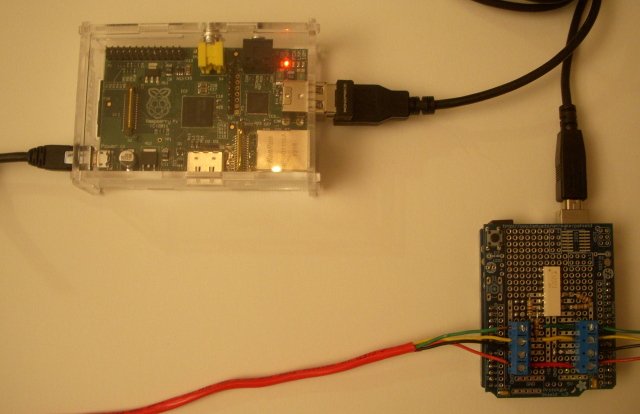
<p>In the configuration shown below, the Raspberry Pi both powers and receives serial information from an Arduino Uno and custom shield by USB.  The Raspberry Pi is shown with <a href="http://www.adafruit.com/products/814">WiFi dongle</a>, <a href="http://www.adafruit.com/products/859">case</a>, and  <a href="http://www.adafruit.com/products/966">low-profile microSD card adapter</a> from Adafruit.</p>
<p><a href="http://www.swblabs.com/blog/wp-content/uploads/2012/10/rpi-arduino-l.jpg"><img class="aligncenter size-full wp-image-763" title="rpi-arduino-s" src="http://www.swblabs.com/blog/wp-content/uploads/2012/10/rpi-arduino-s.jpg" alt="" width="640" height="414" /></a></p>
<p>I used an <a href="http://www.adafruit.com/products/51">Adafruit Proto Shield</a> to mount the terminal blocks and opto-isolator for the Arduino.  I happened to have some TLP-624-4 chips on hand so I used one but I only needed two of the four channels that chip provides (to handle clock and data).  In my case, I needed 1K resistors on the input side and actually 180 Ohm pull-ups on the output side to read the signal reliably.  In the case of the Arduino, the output pull-ups are to 5v and earlier when I was reading the outputs using the Gpio lines on the Raspberry Pi, they were pulled up to the 3.3v line.  The terminal blocks on the left of the photo are to the monitored system.  I added the optional terminal blocks on the right if I wanted to pass the signals through to another device on the bus.  The higher voltage red power wire is only there for the purpose of the pass through to other devices.  Any two digital lines on the Arduino would suffice for reading the signal &#8212; I chose 6 &amp; 7 (actually originally I chose 7 &amp; 8 but realized that I might want to try the shield with the Electric Imp Shield for wireless transmission which uses 8 &amp; 9 by default).  I&#8217;ve included a Fritzing-generated breadboard and schematic diagram later in the article to make the circuit more clear.</p>
<p style="text-align: center;"><a href="http://www.swblabs.com/blog/wp-content/uploads/2012/10/signal-shield-l.jpg"><img class="aligncenter  wp-image-769" title="signal-shield-s" src="http://www.swblabs.com/blog/wp-content/uploads/2012/10/signal-shield-s.jpg" alt="" width="384" height="451" /></a></p>
<p>The logic trace below shows an example of data being received from the bus.  The SPI protocol analyzer on the <a href="http://www.saleae.com/">Saleae Logic Analyzer</a> does a good job of interpreting the bytes being transmitted (Caution: make sure you know the voltage levels you are testing are within the allowable range for your analyzer).  In this case, I took data to be valid on the trailing edge of the clock pulse.</p>
<p><a href="http://www.swblabs.com/blog/wp-content/uploads/2012/10/signal-raw-l.png"><img class="aligncenter size-full wp-image-765" title="signal-raw-s" src="http://www.swblabs.com/blog/wp-content/uploads/2012/10/signal-raw-s.png" alt="" width="640" height="132" /></a></p>
<p>The trace below shows a similar system state (but a different sample) as seen after the opto-isolator.  As a result of the circuit, the original signal is inverted &#8212; which actually turns out to be convenient in interpreting system state.</p>
<p><a href="http://www.swblabs.com/blog/wp-content/uploads/2012/10/signal-scaled-l.png"><img class="aligncenter size-full wp-image-767" title="signal-scaled-s" src="http://www.swblabs.com/blog/wp-content/uploads/2012/10/signal-scaled-s.png" alt="" width="640" height="129" /></a></p>
<p>In the case of this serial signal, I&#8217;m interested in elements of the system state which are being repeatedly transmitted (e.g. the first 5 bytes of the transmitted 7 byte groups).  So I&#8217;d like the Arduino to transmit any groups where  a change happens in the first 5 bytes.  A <a href="http://www.swblabs.com/downloads/monitor.ino">simple Arduino program</a> to do this is shown below.</p>
<pre>//Capture Serial Bytes

#define CLK 7 //clock pin
#define DAT 6 //data pin
#define LEN 7 //# of serial bytes to read per group
#define SIG 5 //# of signicant bytes to detect state change

int buf[LEN];
int last[LEN];
int thresh=4000; //minimum delay per group start (on 328p)
int msk=0x80;
int cnt,i,j,scnt,pnt,cur,bit,bcnt,dif;

void setup(){
  Serial.begin(9600);
  pinMode(CLK,INPUT); //needed external pullups
  digitalWrite(CLK,1);
  pinMode(DAT,INPUT); //needed external pullups
  digitalWrite(DAT,1);
}

void loop(){
  pnt=0;
  bcnt=0;
  msk=0x80;
  cur=0;
  while(1) {
    while(digitalRead(CLK)==0);
    cnt=0;
    while(digitalRead(CLK)==1) {
      cnt++;
    }
    if (cnt&gt;thresh) break;
  }
  scnt=cnt;
  while(1) {
    while(digitalRead(CLK)==0);
    bit=digitalRead(DAT);
    bcnt++;
    if (bit==1) {
      cur|=msk;
    }
    msk&gt;&gt;=1;
    if (msk==0) {
      msk=0x80;
      buf[pnt++]=cur;
      cur=0;
    }
    if (bcnt&gt;(LEN*8-1)) break;
    while(digitalRead(CLK)==1);
  }
  dif=0;
  for(i=0;i&lt;SIG;i++) {
    if (last[i]!=buf[i]) {
      dif=1;
      break;
    }
  }
  if (dif==1) {
    //Serial.print("scnt=");
    //Serial.println(scnt);
    Serial.write(LEN);
    for(i=0;i&lt;LEN;i++) {
      //Serial.print(String(buf[i],HEX));
      //Serial.print(" ");
      Serial.write(buf[i]);
    }
    //Serial.println();
    for(i=0;i&lt;SIG;i++) last[i]=buf[i];
  }
}</pre>
<p>My relatively simple protocol was to send a length count followed by that number of bytes from the Arduino every time a state change was observed.</p>
<p>On the Raspberry Pi, I wrote <a href="http://www.swblabs.com/downloads/monitor.py">a Python program</a> to interpret the state information coming back from the Arduino and to email change notifications.  The interpretation starts at the bit level and uses a set of re-write rules to provide a flexible way to build up higher-level interpretations or to re-arrange the way the text appears.  One shortcoming is that I don&#8217;t yet detect cycles in the state information.  In certain situations, a sequence of messages itself represents a state (e.g. when one or more doors/windows are open).  Because the current logic waits for state changes to stop before sending &#8212; the result could be a pretty long notification.  I&#8217;m planning to update the code shortly to recognize cyclic sets of state notifications as a single state.  Additionally, the code should be updated to provide different levels of detail for different addresses or means of notification.  The code shown here sends every displayed state change (like a door opening) &#8212; while one might want only priority notifications of actual alarm conditions when the system is armed.</p>
<p>In order to run the Python program as a service which automatically starts on the Pi, I used <a href="http://www.swblabs.com/downloads/monitor">a script</a> which I stored as /etc/init.d/monitor.  Then I used &#8220;update-rc.d monitor defaults&#8221; to ensure that it starts on boot.  You can start and stop the program manually with &#8220;/etc/init.d/monitor start&#8221; and &#8220;/etc/init.d/monitor stop&#8221;.</p>
<p>&nbsp;</p>
<p style="text-align: center;"><a href="http://www.swblabs.com/blog/wp-content/uploads/2012/10/fritzing-bb-s.png"><img class="aligncenter  wp-image-759" title="fritzing-bb-s" src="http://www.swblabs.com/blog/wp-content/uploads/2012/10/fritzing-bb-s.png" alt="" width="512" height="649" /></a></p>
<p style="text-align: center;"><a href="http://www.swblabs.com/blog/wp-content/uploads/2012/10/fritzing-schematic2-s.png"><img class="aligncenter  wp-image-760" title="fritzing-schematic2-s" src="http://www.swblabs.com/blog/wp-content/uploads/2012/10/fritzing-schematic2-s.png" alt="" width="512" height="542" /></a></p>
]]></content:encoded>
			<wfw:commentRss>http://www.swblabs.com/?feed=rss2&#038;p=770</wfw:commentRss>
		<slash:comments>7</slash:comments>
		</item>
		<item>
		<title>Control Romo with Python from Your PC</title>
		<link>http://www.swblabs.com/?p=730&#038;utm_source=rss&#038;utm_medium=rss&#038;utm_campaign=control-romo-with-python-your-pc</link>
		<comments>http://www.swblabs.com/?p=730#comments</comments>
		<pubDate>Tue, 08 May 2012 03:40:08 +0000</pubDate>
		<dc:creator>Scott</dc:creator>
				<category><![CDATA[Robots]]></category>
		<category><![CDATA[Software]]></category>

		<guid isPermaLink="false">http://www.swblabs.com/?p=730</guid>
		<description><![CDATA[I wanted to control my Romo (the cellbot from Romotive) from my PC.  But I like Romotive&#8217;s control app and didn&#8217;t really want to write my own at this point using their SDK.  Instead, I just wanted to control their app from a script on my PC which hopefully would let it access all the functionality.  Of course, this meant using the protocol they use between their controller app and the app which is actually [...]]]></description>
				<content:encoded><![CDATA[<p>I wanted to control my Romo (<a href="http://www.romotive.com/">the cellbot from Romotive</a>) from my PC.  But I like Romotive&#8217;s control app and didn&#8217;t really want to write my own at this point using their SDK.  Instead, I just wanted to control their app from a script on my PC which hopefully would let it access all the functionality.  Of course, this meant using the protocol they use between their controller app and the app which is actually running on the device mounted on the Romo.</p>
<p>When you launch a Romo app and it says &#8220;Waiting for controller devices&#8221;, it sends out a multi-cast packet (on 235.8.13.21:21135) which advertises that the Romo is present and gives its name.  That&#8217;s how controller apps know which Romos they can select for control.  The packet also gives the IP address of the Romo.  If you choose to control a specific Romo in the controller mode of the app, it starts sending UDP packets to communicate with the Romo.  These packets tell the Romo to show different emotions, to flip which camera is used, to move in one of 8 ways, and to start streaming video.  If video is requested, a sequence of JPG images are streamed back from the Romo to the controller using that same UDP port (port 21133).</p>
<p>Note: As this protocol is internal to the Romotive app, it may very well change if they need to restructure how they do things (for instance, if they add motor speed control instead of just direction).</p>
<p>I recently learned Python (actually because I had fun taking Sebastian Thrun&#8217;s self-driving car class on <a href="http://www.udacity.com">Udacity</a> and that was the language used for the course).  In an attempt to learn it better, I&#8217;ve been trying to use it more often when I need a quick program.  So I cranked out a  program to do the Romo control.  Keep in mind this is a programmatic way to control the Romo from any machine that can route UDP to the Romo &#8212; not a UI (although there are a number of ways to expand it to be a cross-platform UI).<strong>  (Note: a UI version is now available &#8212; see the updates at the bottom of this article)</strong>  You can download <a href="http://www.swblabs.com/downloads/romo.py">the full romo.py file here</a>.  The full listing has more comments and instructions.  Here&#8217;s an abbreviated listing with mostly just the code:</p>
<pre style="padding-left: 30px;">import socket
import time
import threading

#Edit the following 3 variables to match your configuration

image_directory="e:/romo-images" #directory to store images
my_ip=[192,168,123,2] #your IP
romo_ip=[192,168,123,3] #IP of the romo

romo_port=21133
romo_ip_str=".".join(map(str,romo_ip))
my_ip_str=".".join(map(str,my_ip))

buf=""
for oct in my_ip:
    buf+=chr(oct)
for oct in romo_ip:
    buf+=chr(oct)
for i in range(4):
    buf+=chr(0)

#faces

smile="\xc8"
love="\xc9"
excited="\xca"
wink="\xcb"
random="\xcc"
frown="\xcd"
angry="\xce"
confused="\xcf"
hush="\xd0"
crying="\xd1"

#camera

flipcam="\x8c" #flips the camera from front to back or back to front

#moves (for some reason the first move may need to be sent twice)
s="\x70" #stop
fl="\x69" #forward left
f="\x64" #forward straight
fr="\x65" #forward right
rl="\x78" #rotate left
rr="\x68" #rotate right
bl="\x77" #back left
b="\x7c" #back straight
br="\x7b" #back right

#control commands

init="\x01"
startvideo="\x06"
shutdown="\x08"

abort=threading.Event()
sock=socket.socket(socket.AF_INET,socket.SOCK_DGRAM)

#for type 3 face and move commands
def send(cmd):
    tmp="\x03"+cmd+buf
    sock.sendto(tmp,(romo_ip_str,romo_port))

#for type 2 commands like init, startvideo, shutdown
def ctrl(cmd):
    if cmd==shutdown:
        abort.set() #let thread shut down
        time.sleep(1)
    elif cmd==startvideo:
        t=ThreadClass()
        t.start()
    tmp="\x02"+cmd+buf
    sock.sendto(tmp,(romo_ip_str,romo_port))

class ThreadClass(threading.Thread):
    def run(self):
        vsock=socket.socket(socket.AF_INET,socket.SOCK_DGRAM)
        vsock.bind((my_ip_str,romo_port))
        cnt=0
        print("Image fetching thread started.")
        while not abort.isSet():
            data,addr=vsock.recvfrom(15000) #Photos are less than 15K
            cnt+=1
            scnt=str(cnt)
            for i in range(4-len(scnt)):
                scnt="0"+scnt
            if ord(data[0])==5 and ord(data[1])==0: #JPEG Image
                f=open(image_directory+"/image"+scnt+".jpg","w")
                f.write(data[14:])
                f.close()
        vsock.close()
        print("Image fetching thread finished.")

ctrl(init)
#time.sleep(1)
#ctrl(startvideo)       

#ctrl(shutdown) will shutdown the image capture thread, disconnect from the romo, and allow one to quit() the python interpreter</pre>
<p>A typical session that tells the Romo to smile, express love, move forward, and then stop might be:</p>
<pre>python -i romo.py
&gt;&gt;&gt;send(smile)
&gt;&gt;&gt;send(love)
&gt;&gt;&gt;send(f)
&gt;&gt;&gt;send(s)
&gt;&gt;&gt;quit()</pre>
<p>A video capture session which starts video capture, moves forward, flips to the back camera, moves backward, and shuts down might be:</p>
<pre>python -i romo.py
&gt;&gt;&gt;ctrl(startvideo)
&gt;&gt;&gt;send(f)
&gt;&gt;&gt;send(s)
&gt;&gt;&gt;send(flipcam)
&gt;&gt;&gt;send(b)
&gt;&gt;&gt;send(s)
&gt;&gt;&gt;ctrl(shutdown)
&gt;&gt;&gt;quit()</pre>
<p>Be careful in your use of video capture, the frames come rather quickly and are a little less than 15K each.  When you turn on video capture in the script, it starts a background thread which captures them and writes them out to the specified directory as a sequence of JPEG files (I only pad for a 4 digit count).  If you write a UI based on this, you&#8217;d normally just refresh the image every time a new one comes in.  You could also do the same if you just want to add a command to copy out whatever the last received frame is (rather than keeping them all).  Have fun!</p>
<p><strong>Update: </strong>I couldn&#8217;t resist putting together a simple Python UI with a real-time video window and keyboard controls.  You can download<a href="http://www.swblabs.com/downloads/romo-ui.pyw"> the full romo-ui.pyw program here</a>.  The UI requires a standard Python release which includes the Tkinter UI modules.  It also requires the PIL library for the JPG image handling.  The details about how to get these are in the comments to the program.  If you&#8217;ve installed the Python environment with Tkinter, you can just launch the romo-ui.pyw program to start it &#8212; make sure the phone on your Romo is already waiting for connections.  You can exit the app either by typing &#8220;q&#8221; or deleting the window.  Both should exit gracefully.  The steering controls take advantage of the 9 key keypad (if you&#8217;ve got one).  It should work in either numeric or non-numeric mode (see the code for the key mappings).  Flipping the camera view is the &#8220;-&#8221; key and the faces are controlled by generally logical letter keys.  It works great on my Romo (even with my hyper speed motor mod).</p>
<p><strong>Update2: </strong>I added automated discovery capability for Romos.  You can download<a href="http://www.swblabs.com/downloads/romo-ui2.pyw"> the full romo-ui2.pyw program here</a>.  You currently can&#8217;t choose from multiple Romos (unless you hardcode the address) but it will auto-discover the first one it finds and connect to it.  This involves both announcing that it&#8217;s looking for Romos on the multicast channel as well as listening for responses (the default is only to look for about 5 seconds &#8212; you can lengthen that time by setting it in the script).  This was tested with the latest Romo iPhone app (v1.05).</p>
<p style="text-align: center;"><a href="http://www.swblabs.com/blog/wp-content/uploads/2012/05/romo-python.png"><br />
</a></p>
<p><center><img class="aligncenter  wp-image-729" title="romo-python" src="http://www.swblabs.com/blog/wp-content/uploads/2012/05/romo-python.png" alt="" width="307" height="384" /></center></p>
]]></content:encoded>
			<wfw:commentRss>http://www.swblabs.com/?feed=rss2&#038;p=730</wfw:commentRss>
		<slash:comments>7</slash:comments>
		</item>
		<item>
		<title>Wireless Pinball Score Reel Control</title>
		<link>http://www.swblabs.com/?p=634&#038;utm_source=rss&#038;utm_medium=rss&#038;utm_campaign=wireless-pinball-score-reel-control</link>
		<comments>http://www.swblabs.com/?p=634#comments</comments>
		<pubDate>Fri, 04 May 2012 04:39:41 +0000</pubDate>
		<dc:creator>Scott</dc:creator>
				<category><![CDATA[Arduino (or compatible)]]></category>
		<category><![CDATA[Projects]]></category>

		<guid isPermaLink="false">http://www.swblabs.com/?p=634</guid>
		<description><![CDATA[I was reading the April 2012 issue of Elektor and spotted an article by Ludovic Mézière on building a Thermometer using Giant Gottlieb® Displays.  I was really intrigued by his use of large mechanical scoring reels from a 1960s pinball machine.  So I set out to investigate how costly it might be to obtain such reels.  Once I learned that the technical term for these were &#8220;score reels&#8221; it became somewhat easier to search eBay [...]]]></description>
				<content:encoded><![CDATA[<p>I was reading the April 2012 issue of Elektor and spotted an article by Ludovic Mézière on building a <a href="http://www.elektor.com/magazines/2012/april/thermometer-using-giant-gottlieb-displays.2114766.lynkx?tab=3">Thermometer using Giant Gottlieb<sup>®</sup> Displays</a>.  I was really intrigued by his use of large mechanical scoring reels from a 1960s pinball machine.  So I set out to investigate how costly it might be to obtain such reels.  Once I learned that the technical term for these were &#8220;score reels&#8221; it became somewhat easier to <a href="http://www.ebay.com/sch/i.html?_nkw=score+reels&amp;_sacat=0&amp;_odkw=score+reels&amp;_osacat=0&amp;_from=R40">search eBay</a> for them.  After some further research, I particularly liked the Gottlieb Decagon units and was able to purchase 3 working ones from a <a href="http://www.pinrepair.com/gtb/hotshot.htm">1973 Gottlieb Hotshot</a> machine for a total of about $50.  The Gottlieb Decagon mechanism is a nice one and is illustrated in <a href="http://www.google.com/patents?id=cAlwAAAAEBAJ&amp;pg=PA1&amp;source=gbs_selected_pages&amp;cad=1#v=onepage&amp;q&amp;f=false">Roman Garbark&#8217;s patent from June of 1968</a> ( &#8221;Doc&#8221; Garbark was head of mechanical engineering at the Gottlieb pinball company).  Chicago-based Gottlieb made pinball machines since its founding in 1927, was acquired in 1977, went through several transfers of ownership, and eventually ceased production in 1996 (<a href="http://en.wikipedia.org/wiki/Gottlieb">Wikipedia</a>).</p>
<p>The Gottlieb Decagon score reels use a solenoid to advance the reel.  They also have a number of connections so the numeric position of the reel can be sensed.  The solenoids are usually triggered by 24VAC.  I found that an old 18V DC 2.23 Amp printer power supply I had was sufficient to trigger the solenoids &#8212; albeit one at a time.  I used only 4 of the numerous wires coming from each reel.  I used two wires which get connected when the zero is displayed.  And then, of course, the two wires to energize the solenoid.  I had some 5V DC relays (<a href="http://documents.tycoelectronics.com/commerce/DocumentDelivery/DDEController?Action=srchrtrv&amp;DocNm=108-98007&amp;DocType=SS&amp;DocLang=EN">Axicom D2n</a>) on hand which could be directly driven from an Arduino and could handle the current and voltage for the solenoids.</p>
<p>I haven&#8217;t put a case on the unit yet &#8212; since I have some more Decagon units waiting to join in (I got 4 more Decagons recently for half the price of my first 3 but I&#8217;ll need to clean them to get them into working order).  I used 10-24 threaded rod and nuts to connect and space the reels appropriately  (1.6&#8243; between the metal mounting plates worked well).</p>
<p><a href="http://www.swblabs.com/blog/wp-content/uploads/2012/04/pb-overview.jpg"><img class="aligncenter size-full wp-image-631" title="pb-overview" src="http://www.swblabs.com/blog/wp-content/uploads/2012/04/pb-overview.jpg" alt="" width="640" height="396" /></a></p>
<p>The video below shows the unit being set through the browser on an iPhone.  My original plan was to use a set of 4 reels for a clock but I&#8217;m also thinking about using it for a web hit counter.</p>
<p><center><iframe src="http://www.youtube.com/embed/EJIdhNJaoeo?rel=0" frameborder="0" width="560" height="315"></iframe></center>I used a <a href="https://www.adafruit.com/products/590">full-sized Perma-Proto board</a> from Adafruit to put together the interface.  I tried out the <a href="https://www.adafruit.com/products/256">Patch shield</a> as a way of coupling the Arduino controller with the Perma-Proto board.  For my 3 relay board this utilized all 8 wires on the RJ45 coupler (5v, ground, 3 zero sense lines, and 3 solenoid triggers).  Three 4-wire terminal blocks were organized to connect with the reels.  One 2-wire block was used to connect with the 18V supply.  At first I powered the Arduino separately then simplified things by adding a <a href="http://www.pololu.com/catalog/product/2110">Pololu step down regulator</a>  to provide a good 5V supply from the 18V.  It turned out the easiest way to connect the regulator was using <a href="http://www.adafruit.com/products/724">Adafruit&#8217;s 3.5 mm terminal blocks</a>.  Since I had the power rails on one side of the Perma-Proto at the 5V level (for the Arduino) and the others at 18V for the solenoid, I needed an easy way to mount the terminal blocks so the pins fit the power rails.  The Adafruit 3.5mm blocks can be positioned at a diagonal to precisely connect with power and ground on the rails.  This gave me the option of driving the Arduino power from the board with the step down or powering it separately on the Arduino itself by removing the step down.  Through use of the relays, it&#8217;s interesting that just like the score reels themselves the interface board is purely electro-mechanical.  (Note: if you don&#8217;t have relays on hand, an inexpensive way to drive a set of 4 might be with <a href="http://seeedstudio.com/wiki/Relay_Shield">Seeed Studio&#8217;s Relay Shield</a> which is available at <a href="http://www.radioshack.com/product/index.jsp?productId=12665270">Radio Shack for $20</a> but it looks like it needs an external 9V supply).<a href="http://www.swblabs.com/blog/wp-content/uploads/2012/04/permaproto.jpg"><img class="aligncenter size-full wp-image-630" title="permaproto" src="http://www.swblabs.com/blog/wp-content/uploads/2012/04/permaproto.jpg" alt="" width="640" height="572" /></a></p>
<p>On the other end of the CAT5 patch cable from the Perma-Proto interface board is the Arduino stack itself.  In this case, I wanted to make the counter controllable over WiFi so I stacked an Arduino Uno with a <a href="http://www.sparkfun.com/products/9954">WiFly shield</a> with the Patch shield on top.  When using the step-down the power comes over the CAT5 as well so no other connections are needed with the Arduino stack.  The Arduino sketch runs a small web server which accepts new reading values for the score reels.  When the unit powers up, it zeroes all the reels.  Whenever more than one reel needs to change, I stagger energizing the reel solenoids to limit the needed power.  The settings I found that worked best for my reels was 50ms to pull the solenoid down and a delay of 300ms to allow the solenoid to pop back up and the reel to turn.  If I energize the reels in sequence, the reels do actually overlap in their movement due to the longer time for the mechanical movement of the reels to take place.  Here&#8217;s a <a href="http://www.swblabs.com/downloads/ScoreReelServer.pde">link to the current sketch</a> that&#8217;s running on the Arduino.  I&#8217;ll generalize it further and make improvements as I add additional reels.  I put the wiring for the Perma-Proto into <a href="http://fritzing.org/">Fritzing</a> but haven&#8217;t had the time to add the needed terminal blocks, DPDT relays, and the Perma-Proto itself to the Fritzing libraries.</p>
<p><a href="http://www.swblabs.com/blog/wp-content/uploads/2012/04/pb-board-stack.jpg"><img class="aligncenter size-full wp-image-632" title="pb-board-stack" src="http://www.swblabs.com/blog/wp-content/uploads/2012/04/pb-board-stack.jpg" alt="" width="640" height="510" /></a></p>
<p>Here&#8217;s the supply I used from an old HP printer.</p>
<p style="text-align: center;"><a href="http://www.swblabs.com/blog/wp-content/uploads/2012/04/ps-supply.jpg"><img class="aligncenter  wp-image-633" title="ps-supply" src="http://www.swblabs.com/blog/wp-content/uploads/2012/04/ps-supply.jpg" alt="" width="300" height="384" /></a></p>
]]></content:encoded>
			<wfw:commentRss>http://www.swblabs.com/?feed=rss2&#038;p=634</wfw:commentRss>
		<slash:comments>4</slash:comments>
		</item>
		<item>
		<title>High-speed Romo Modification</title>
		<link>http://www.swblabs.com/?p=539&#038;utm_source=rss&#038;utm_medium=rss&#038;utm_campaign=high-speed-romo-modification</link>
		<comments>http://www.swblabs.com/?p=539#comments</comments>
		<pubDate>Sat, 14 Apr 2012 03:31:19 +0000</pubDate>
		<dc:creator>Scott</dc:creator>
				<category><![CDATA[Kickstarter]]></category>
		<category><![CDATA[Projects]]></category>
		<category><![CDATA[Robots]]></category>

		<guid isPermaLink="false">http://www.swblabs.com/?p=539</guid>
		<description><![CDATA[A couple weeks back I got Romotive&#8217;s Romo cell bot from a project I sponsored on Kickstarter. Cell bots use an onboard cellphone as their controller. As with other cell bots I&#8217;ve built, audio out is used to communicate with the robot platform. Some of the earlier cell bots actually directly controlled servo motors using the audio out. Romotive executed this far better with their robot base and it&#8217;s the best such small cell bot [...]]]></description>
				<content:encoded><![CDATA[<p>A couple weeks back I got <a href="http://romotive.com">Romotive&#8217;s</a> Romo cell bot from a project I sponsored on <a href="http://www.kickstarter.com/projects/peterseid/romo-the-smartphone-robot?ref=live">Kickstarter</a>. Cell bots use an onboard cellphone as their controller. As with other cell bots I&#8217;ve built, audio out is used to communicate with the robot platform. Some of the earlier cell bots actually directly controlled servo motors using the audio out. Romotive executed this far better with their robot base and it&#8217;s the best such small cell bot I have. The assembly was straight-forward and with a pre-assembled board, no soldering was required. The only slight detraction was that the power switch on the circuit board came broken off and email to the Romotive team via both Kickstarter and their own support email has gone unanswered. It&#8217;s fairly minor though since the switch can be forced on or off with a screwdriver but it would have been nice to hear from them. The Romo supports both IOS and Android phones and tablets (phones for the controller on the Romo itself). The devices vary in both camera placement and whether the screen is rotated which can make the wrong combination awkward to use. I&#8217;m sure this will be resolved in time. I&#8217;ve tried the Romo with iPhone and iPod Touch and control with iPad, Xoom, and iMac. For my array of devices, I found it&#8217;s best to have the iPhone on<br />
the Romo and control works best with iPad and iPod Touch. The small size of the robot and the traction afforded by the treads make it fun as it can move through some pretty confined spaces. Remote exploration is easy with ability to see remote real-time video from both front and rear facing cameras on the phone mounted on the Romo.  As seen in the photo below, the Romo is very expressive with various emotive settings controllable from the remote.</p>
<p style="text-align: center;"><a href="http://www.swblabs.com/blog/wp-content/uploads/2012/04/romo-front.png"><img class="aligncenter  wp-image-542" title="romo-front" src="http://www.swblabs.com/blog/wp-content/uploads/2012/04/romo-front.png" alt="" width="409" height="512" /></a></p>
<p>The phone mounts very securely on the base. The front also has three accessory ports which could be utilized by various effectors (but probably not sensors unless other connections to the phone are utilized).</p>
<p style="text-align: center;"><a href="http://www.swblabs.com/blog/wp-content/uploads/2012/04/romo-back.png"><img class="aligncenter  wp-image-541" title="romo-back" src="http://www.swblabs.com/blog/wp-content/uploads/2012/04/romo-back.png" alt="" width="462" height="512" /></a></p>
<p>Romotive took advantage of alot of <a href="http://www.pololu.com">Pololu</a> parts in designing the robot. Quite literally why re-invent the wheel (or track) when Pololu&#8217;s got some excellent parts including the tracks, motors, and motor mounts. I think the original motors are probably the <a href="http://www.pololu.com/catalog/product/992">100:1 #992 motors from Pololu</a>.  The Romotive guys also said they required about 10 oz-in of torque and that the limit on the H-bridges was about 1 amp as reported in <a href="http://romotive.com/forum/discussion/34/faster-motorss">this thread</a>.  The original Romo actually moves kind of slow and I thought speeding it up might be nice.  I couldn&#8217;t quite find another micro gear motor on the Pololu site that met the specs.  But one of the posts on the previous thread mentioned<a href="http://robotmarketplace.com/products/0-GM11A.html"> a nice 56:1 gear motor</a> that met the specs.  So I decided to give it a try.  I used a couple of JST connectors and wires I had around (since the Romo uses JST connectors for the motors) and I soldered the new motors onto the leads.  After installing, the result is a much higher-speed Romo as shown in the video below.</p>
<p><iframe src="http://www.youtube.com/embed/z4ZYbrnuu9k?rel=0" frameborder="0" width="560" height="315"></iframe></p>
<p>This operates the Romo a bit faster than the original software was designed for.  It would be nice to get some enhancements to the default applications to support this.  For instance, better motor speed control would be nice or at least a mode where it slows down for turning in place.  Also the Romo may more easily sense that it&#8217;s been shaken and makes a noise and a confused expression &#8212; but this happens much more often at high speed and it would be nice to turn it off.  I also somehow ended up with the motor polarities on the new motors exactly backwards even though I carefully mirrored the way the wiring was done with the other motors.  This could obviously be a quick fix with a motor polarity software setting but unfortunately there&#8217;s no such setting in the app.  The Romo is a lot of fun and the high-speed version will certainly speed up my exploring.</p>
<p>&nbsp;</p>
]]></content:encoded>
			<wfw:commentRss>http://www.swblabs.com/?feed=rss2&#038;p=539</wfw:commentRss>
		<slash:comments>2</slash:comments>
		</item>
		<item>
		<title>Arduino Plays Connect4</title>
		<link>http://www.swblabs.com/?p=93&#038;utm_source=rss&#038;utm_medium=rss&#038;utm_campaign=arduino-plays-connect4</link>
		<comments>http://www.swblabs.com/?p=93#comments</comments>
		<pubDate>Tue, 13 Mar 2012 03:31:30 +0000</pubDate>
		<dc:creator>Scott</dc:creator>
				<category><![CDATA[Arduino (or compatible)]]></category>
		<category><![CDATA[Projects]]></category>

		<guid isPermaLink="false">http://www.swblabs.com/?p=93</guid>
		<description><![CDATA[I was playing a game of Connect4 with my daughter one day and it occurred to me there might be a nice way of sensing the moves in the physical game in order to introduce a computer player. Looking at the top of the game board, I thought there just might be enough room to place photo interrupters in each position to watch as the pieces are dropped. It turns out the GP1A57HRJ00F sold at [...]]]></description>
				<content:encoded><![CDATA[<p>I was playing a game of Connect4 with my daughter one day and it occurred to me there might be a nice way of sensing the moves in the physical game in order to introduce a computer player. Looking at the top of the game board, I thought there just might be enough room to place photo interrupters in each position to watch as the pieces are dropped. It turns out the <a href="http://www.sparkfun.com/products/9299">GP1A57HRJ00F sold at Sparkfun</a> fits nicely.  I figured an Arduino would work nicely to provide the computer player for the game, so I set out to create a circuit board of the right geometry for the game board.</p>
<p><center><a href="http://www.swblabs.com/blog/wp-content/uploads/2012/03/c4-side.png"><img class="aligncenter size-full wp-image-517" title="c4-side" src="http://www.swblabs.com/blog/wp-content/uploads/2012/03/c4-side.png" alt="" width="640" height="373" /></a></center>I would have liked to use this as an opportunity to learn Eagle and to have a board made but it appeared that the dimensions of my board exceeded those allowable for the free edition &#8212; not because of the complexity of the circuit but rather to make it fit the game board.  So I decided to mill the board with my CNC instead using some copper clad board.  I started to use Google SketchUp to do that layout using the free g-code generation plug-in from <a href="http://www.phlatboyz.com/">Phlatboyz</a> and realized that although I liked using SketchUp to preview the layout, generating it parametrically with software would be easier and allow me to more easily make adjustments.  So I just coded a Ruby plug-in to SketchUp that did the layout I needed and made calls to the Phlatboyz routines for g-code generation as necessary.  I have some videos of the milling at the end of the post.</p>
<p><center><a href="http://www.swblabs.com/blog/wp-content/uploads/2012/03/arduino-c4.png"><img class="aligncenter size-full wp-image-516" title="arduino-c4" src="http://www.swblabs.com/blog/wp-content/uploads/2012/03/arduino-c4.png" alt="" width="640" height="366" /></a></center>Other than power and ground, the design uses a single line for each of the seven slots. The lines both control the LED and deliver the sense data from the photo interrupter. The design is very simple consisting solely of the photo interrupters, resistors, and LEDs. The biggest challenge was the geometry of the slots (for the checkers to drop) and the mounting of the photo interrupters.  The LEDs would provide a way to indicate where the computer player wanted to move.  But I thought it might be nice to make the game more conversational, so I added a <a href="https://www.adafruit.com/products/94">Wave Shield from Adafruit</a>.  I prepared a script of some things the computer player might say during the game and my daughter had a fun time recording the clips which were then downloaded to the SDCard on the shield.  I then had to design the computer player&#8217;s AI &#8212; I wrote a <a href="http://en.wikipedia.org/wiki/Minimax">Minimax</a> search.  But I soon discovered with my daughter&#8217;s play with the game that I&#8217;d better limit the look-ahead of the computer player and make it easier for people to win.  Actually, playing against an Arduino with my 5 year old daughter&#8217;s voice is somewhat disarming <img src='http://www.swblabs.com/blog/wp-includes/images/smilies/icon_wink.gif' alt=';-)' class='wp-smiley' />  I took a couple quick video examples &#8212; below the human wins.</p>
<p><center><iframe src="http://www.youtube.com/embed/iuC1rNqlxWM?rel=0" frameborder="0" width="560" height="315"></iframe></center>And in the second video, the Arduino wins. I stepped up to an Arduino Mega when I added the Wave Shield (which required some minor tweaking) because I needed the extra lines. I used an old Sun speaker as I have on several of my other projects. You may notice in the second video that one of the LEDs has a loose connection and isn&#8217;t lighting. In some sense, play can tolerate a single LED failure if you know which column to go to when you don&#8217;t see one lit <img src='http://www.swblabs.com/blog/wp-includes/images/smilies/icon_wink.gif' alt=';-)' class='wp-smiley' /> </p>
<p><center><iframe src="http://www.youtube.com/embed/f_j2G4K6NIw?rel=0" frameborder="0" width="560" height="315"></iframe></center>The video below shows the isolation routing being performed.</p>
<p><center><iframe src="http://www.youtube.com/embed/VEkhceEjjPk?rel=0" frameborder="0" width="560" height="315"></iframe></center>The next shows the holes being drilled with a dremel.</p>
<p><center><iframe src="http://www.youtube.com/embed/IfXvo6nZheE?rel=0" frameborder="0" width="560" height="315"></iframe></center>Next, the cuts are made.</p>
<p><center><iframe src="http://www.youtube.com/embed/b_zJV0wRhxU?rel=0" frameborder="0" width="560" height="315"></iframe></center>And the last shows the finished unpopulated board.</p>
<p><center><iframe src="http://www.youtube.com/embed/Gv8ogWu-iaY?rel=0" frameborder="0" width="560" height="315"></iframe></center>That&#8217;s a quick walk through of the project. I&#8217;d be happy to share full details including the board design, layout code, and Arduino<br />
code. Let me know if there&#8217;s interest and I&#8217;ll add more detail.</p>
]]></content:encoded>
			<wfw:commentRss>http://www.swblabs.com/?feed=rss2&#038;p=93</wfw:commentRss>
		<slash:comments>5</slash:comments>
		</item>
		<item>
		<title>ClockOS Optical Disk Clock</title>
		<link>http://www.swblabs.com/?p=497&#038;utm_source=rss&#038;utm_medium=rss&#038;utm_campaign=clockos-optical-disk-clock</link>
		<comments>http://www.swblabs.com/?p=497#comments</comments>
		<pubDate>Wed, 29 Feb 2012 04:58:59 +0000</pubDate>
		<dc:creator>Scott</dc:creator>
				<category><![CDATA[Arduino (or compatible)]]></category>
		<category><![CDATA[Kickstarter]]></category>
		<category><![CDATA[Projects]]></category>

		<guid isPermaLink="false">http://www.swblabs.com/?p=497</guid>
		<description><![CDATA[I happen to have some old 12 inch optical disks made of glass. So when I saw Terry and Adam Clarkson&#8217;s ClockOS project on Kickstarter, I recognized the potential for an awesome clock! The ClockOS board is Arduino compatible and hosts a ring of 180 surface mount RGB LEDs (in 3 concentric rings of 60).  Modes can be set through 3 buttons on the back side of the board.  The onboard Atmel168 can be programmed [...]]]></description>
				<content:encoded><![CDATA[<p>I happen to have some old 12 inch optical disks made of glass. So when I saw<a href="http://www.kickstarter.com/projects/1969365167/clockos-rgb-led-clock-arduino-programable-0"> Terry and Adam Clarkson&#8217;s ClockOS project on Kickstarter</a>, I recognized the potential for an awesome clock!</p>
<p><center><a href="http://www.swblabs.com/blog/wp-content/uploads/2012/02/disk.png"><img class="aligncenter size-full wp-image-496" title="disk" src="http://www.swblabs.com/blog/wp-content/uploads/2012/02/disk.png" alt="" width="640" height="821" /></a></center>The ClockOS board is Arduino compatible and hosts a ring of 180 surface mount RGB LEDs (in 3 concentric rings of 60).  Modes can be set through 3 buttons on the back side of the board.  The onboard Atmel168 can be programmed by attaching an FTDI cable.  An onboard PIC18F25K22, which helps drive the LEDs, can also be reprogrammed through an ICSP header.</p>
<p><center><a href="http://www.swblabs.com/blog/wp-content/uploads/2012/02/clockos-board.png"><img class="aligncenter size-full wp-image-502" title="clockos-board" src="http://www.swblabs.com/blog/wp-content/uploads/2012/02/clockos-board.png" alt="" width="640" height="551" /></a></center>As you can see from the photos below, the ClockOS board matches up nicely with the optical disk.</p>
<p><center><a href="http://www.swblabs.com/blog/wp-content/uploads/2012/02/clock-light.png"><img class="aligncenter size-full wp-image-495" title="clock-light" src="http://www.swblabs.com/blog/wp-content/uploads/2012/02/clock-light.png" alt="" width="640" height="561" /></a></center><center><a href="http://www.swblabs.com/blog/wp-content/uploads/2012/02/clock-dark.png"><img class="aligncenter size-full wp-image-494" title="clock-dark" src="http://www.swblabs.com/blog/wp-content/uploads/2012/02/clock-dark.png" alt="" width="640" height="608" /></a></center>The video below shows several of the clock faces (and the ClockOS board) in action (the LED flicker is only an artifact of the video).</p>
<p><center><iframe src="http://www.youtube.com/embed/4vYX3tZbO9o?rel=0" frameborder="0" width="560" height="315"></iframe></center></p>
]]></content:encoded>
			<wfw:commentRss>http://www.swblabs.com/?feed=rss2&#038;p=497</wfw:commentRss>
		<slash:comments>2</slash:comments>
		</item>
		<item>
		<title>Gakken Karakuri Somersault Doll</title>
		<link>http://www.swblabs.com/?p=318&#038;utm_source=rss&#038;utm_medium=rss&#038;utm_campaign=gakken-karakuri-somersault-doll</link>
		<comments>http://www.swblabs.com/?p=318#comments</comments>
		<pubDate>Fri, 17 Feb 2012 04:18:33 +0000</pubDate>
		<dc:creator>Scott</dc:creator>
				<category><![CDATA[Gakken Kits]]></category>
		<category><![CDATA[Robots]]></category>

		<guid isPermaLink="false">http://www.swblabs.com/?p=318</guid>
		<description><![CDATA[A few months back, I enjoyed assembling the Gakken Karakuri Somersault Doll (I got mine online from the Maker Shed).  What&#8217;s amazing about the doll is that it slowly completes a series of backward somersaults due to its internal mechanics and the potential energy it has from starting on the top of several steps.  The mechanism was designed long ago during the Japanese Edo period.  The hardest part of the build is probably threading the [...]]]></description>
				<content:encoded><![CDATA[<p>A few months back, I enjoyed assembling the Gakken Karakuri Somersault Doll (I got mine online from the <a href="http://www.makershed.com/product_p/mkgk26.htm">Maker Shed</a>).  What&#8217;s amazing about the doll is that it slowly completes a series of backward somersaults due to its internal mechanics and the potential energy it has from starting on the top of several steps.  The mechanism was designed long ago during the Japanese Edo period.  The hardest part of the build is probably threading the very fine filament which helps the doll&#8217;s feet kick over the top during the somersault.  There&#8217;s also some tricky tuning of the internal weight of the robot, filament tension, and making sure that the costume doesn&#8217;t inhibit movement.  The pedestal spacing is also important along with the stand&#8217;s placement on a solid surface where it won&#8217;t slip during doll movement.</p>
<p><center><a href="http://www.swblabs.com/blog/wp-content/uploads/2012/02/acrobat1.png"><img class="aligncenter  wp-image-476" title="acrobat1" src="http://www.swblabs.com/blog/wp-content/uploads/2012/02/acrobat1.png" alt="" width="461" height="462" /></a></center>Even the knots on the acrobat&#8217;s head had to be carefully placed to ensure the somersault goes smoothly. <img src='http://www.swblabs.com/blog/wp-includes/images/smilies/icon_wink.gif' alt=';-)' class='wp-smiley' /> </p>
<p><center><a href="http://www.swblabs.com/blog/wp-content/uploads/2012/02/acrobat2.png"><img class="aligncenter  wp-image-475" title="acrobat2" src="http://www.swblabs.com/blog/wp-content/uploads/2012/02/acrobat2.png" alt="" width="369" height="528" /></a></center>And here&#8217;s a video of a successful set of backward somersaults.</p>
<p><center><iframe src="http://www.youtube.com/embed/zWod6GFYqNo?rel=0" frameborder="0" width="560" height="315"></iframe></center></p>
]]></content:encoded>
			<wfw:commentRss>http://www.swblabs.com/?feed=rss2&#038;p=318</wfw:commentRss>
		<slash:comments>0</slash:comments>
		</item>
	</channel>
</rss>